

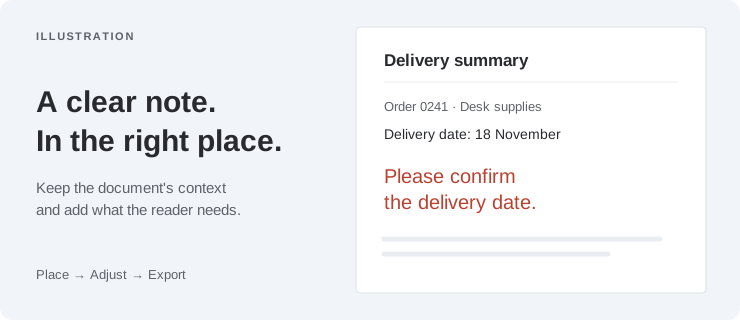
To add a text box to a PDF, open the file in Annotate PDF, choose Text (T), click where you want to type, and enter your words. Adjust the placement and size, then choose Export and check the downloaded copy before sending it.
A text box is a movable area of added text placed over a PDF page; it does not replace the original wording or create a field someone else can fill in.
Before you start: This guide uses Annotate PDF installed in desktop Chrome and a supported static PDF. Your document is processed on your computer, without uploading its contents to a server. Install Annotate PDF from the Chrome Web Store before starting. For an online alternative, Smallpdf’s text-box guide explains its online workflow.
How to add a text box to PDF pages in Chrome
Open your PDF
Open Annotate PDF and choose Open PDF, or drag the PDF document onto the start screen. Go to the page that needs your answer, label, or comment.
Choose a blank area near the relevant content before you add a text box. Your reader should be able to tell what the note refers to while still seeing the original detail.
Choose Text and type your note
Select the text tool, Text (T), then click the PDF document where the text should begin. Type your words into the new text box. You do not need to draw a rectangle first.
For example, add “Please confirm the delivery date” next to the date you want someone to check. Your text box appears on the PDF page where the explanation is needed.
How do I finish typing in a PDF text box?
Press Enter for a new line. Click outside the text box, or press Ctrl+Enter on Windows or Cmd+Enter on Mac, to finish the edit. Escape cancels the current edit, so do not use it as a save command.
Position the text box and fit it to the space
Choose Select (V), select your text box, and drag it into place. Drag a corner handle to change its width and height. Widen the box if the words wrap onto a new line too soon.
The corner handles change the text box, not the letters. Use the separate size setting if the text itself needs to be larger or smaller; the settings table explains the difference.
Check the wording and placement
Double-click your text box to edit it. Correct the wording, finish the edit, and check that it does not cover a label, number, or instruction the recipient still needs.
Keep each PDF text box focused on one point. Several short text boxes near the relevant passages can be easier to follow than one long explanation in a distant margin.
How do I remove a misplaced text box?
Finish typing, choose Select (V), and select the text box. Use Delete selected annotation or press Delete. While the cursor is inside a text box, Delete removes characters instead. If you delete the whole note by mistake, use Undo during the current session.
Export, download, and check your PDF
Choose Export to download the annotated PDF. The filename normally ends in -annotated.pdf, which helps distinguish it from the original.
Open the PDF you downloaded and inspect the page you changed. Check the words, placement, line breaks, and readability in the viewer you expect to use. Send this checked PDF, rather than relying only on what you saw in the editor.
How do you move and resize a text box in a PDF?
Select the text box in your PDF before adjusting its appearance. Start with its position, then change only what makes the message easier to read.
| What you want to change | Control or action | What changes |
|---|---|---|
| Position | Select (V), then drag | Moves the text box to another spot on the PDF page |
| Box width and height | Drag a corner handle | Changes the space available inside the text box and its wrapping |
| Letter size | Font size, from 8–72 px | Makes the letters larger or smaller |
| Letter color | Annotation color | Changes the color of the selected text |
| Background | Text background → Transparent or White | Leaves the page visible behind the words or adds a white background |
When should I use a white background?
If the page behind your note makes it hard to read, first try moving the text box into clear space. Use a white background when you need more contrast. It covers content visually; it does not delete the original PDF text or securely redact it.
Will the selection border appear in the exported PDF?
The outline and corner handles show which text box you are editing; they are not a permanent printed border. If your explanation needs a visible frame, add a separate Rectangle around it and check the exported result.
What does a useful PDF text box look like?
Suppose a PDF document contains a delivery schedule that needs confirmation. Place “Please confirm the delivery date” beside that line, leaving the date readable. The recipient can see both the question and the detail it concerns, without matching a separate email to the page.
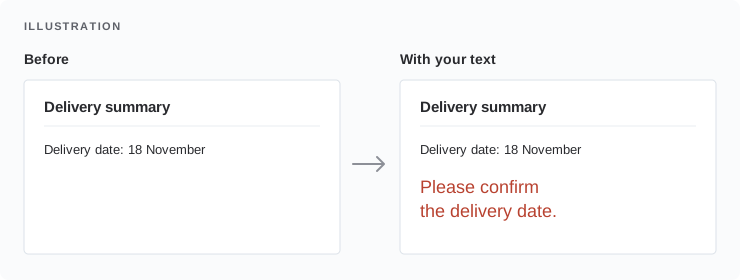
Walk through this example
Click beside the date with the Text tool and add text for your question. Move or widen the text box until the entire note is readable. Export the PDF and reopen the download to confirm that both the date and the question remain visible.
For a static PDF worksheet, the same approach lets you add text in an empty area. Several text boxes can hold separate short answers. When you add text this way, the answers remain visible notes; it does not turn the PDF into an interactive form.
Why can’t I add or change text in my PDF?
I click the PDF page, but no text box appears
Check that Text (T) is selected, then click an empty area and type. If the document opens read-only, check its status message. PDF forms, protected PDFs, or unsupported content may prevent editing. Use an appropriate authorized tool or ask the sender for a suitable static copy; changing tools in the toolbar cannot remove a document restriction.
The letters are too small, or the words wrap badly
If the letters are too small, increase Font size. If the words wrap too soon, widen the text box with a corner handle or shorten the note. Move it away from the page edge if necessary. Check the result after exporting, especially when the text must fit a small blank area.
I can’t change the words already printed on the page
The Text tool lets you add text over a PDF page. It does not replace existing text in the document. To replace an existing sentence, edit the source document or use a tool that supports editing existing PDF content. Putting a new text box over old words does not remove them.
I can’t edit a note from an older PDF
Annotate PDF can restore its own text boxes from supported PDF exports when their saved editing data remains intact. Text boxes created in another application, flattened into the PDF page, or changed by later processing may not be editable here. Return to the original editable file or the application that created it.
Frequently asked questions
Can I add text to a PDF without Adobe Acrobat?
Yes. The Annotate PDF steps above show how to add a text box to PDF documents in desktop Chrome, with the extension installed. Install Annotate PDF from the Chrome Web Store before starting. An online editor is another option; review its file-handling and export terms before uploading your document.
Does adding text make a PDF fillable?
No. Text boxes in this workflow contain visible words you add to the page. A fillable PDF needs interactive form fields that another person can click and complete. For example, a text field accepts an answer when the recipient opens the form. Use a PDF form-authoring tool if you need to create those fields.
Can I add text to a scanned PDF?
You can add text boxes over a supported static scanned PDF page without selecting its original words. This does not perform OCR or make the scan’s original text editable or searchable. Use the Text steps for a visible addition; use an OCR workflow when you need to recognize the scanned words.
Can I remove a text box from a PDF after saving?
For a supported PDF previously exported from Annotate PDF, reopen it, select your text box, delete it, and download an updated copy using Export. This depends on the PDF retaining Anpdf’s own saved editing data. The previous session’s Undo history is not restored, and this does not remove the original document’s text.
Will the recipient see the text boxes in my PDF?
Open the downloaded PDF in the viewer you expect the recipient to use. Check that the text boxes are readable and correctly positioned. For a paper handoff, check print preview too.