

To highlight a PDF in Annotate PDF, open the file, choose Highlight, drag across the words you want to mark, and select Export. Open the downloaded copy to check each highlight before sharing it. You can highlight text when the words are selectable; your document is processed on your computer without uploading it to a server.
A PDF highlighter adds translucent color to selected words, keeping them readable while drawing attention to a passage.
How to highlight a PDF in Chrome
These steps use the Annotate PDF extension for desktop Chrome. Install it first, then open the editor. The PDF and annotation controls are available in the toolbar.
Open your PDF and check the text
Choose Open PDF, or drag your PDF file onto the start screen. Find the passage and check whether you can select individual words.
If the words behave like an image, use the scanned-page guidance below.
What if I cannot install the extension or edit this PDF?
If your work or school computer blocks extensions, use an approved reader you already have; Preview and Acrobat Reader are alternatives. If Annotate PDF opens a PDF read-only, read the displayed explanation. Ask the sender for a suitable static PDF copy when its forms, protection, or other unsupported content prevents editing.
Choose Highlight and mark a passage
To highlight text, choose the Highlight tool in the toolbar, select an Annotation color, then drag from the first word to the last word you need. Release the pointer to leave a highlight over that passage. Work on one page at a time; a selection can span several lines on that page.
If the toolbar currently shows Underline or Strikethrough, activate that tool, then click it again to open the menu and choose Highlight. The Highlight tool shares its button with those modes, so pressing H alone does not always select highlighting.
How do I correct a selection that includes too much text?
Use Undo and select again. For a smaller adjustment, choose Select (V), click your highlight, and move its start or end handle. The highlight stays attached to the source words rather than moving freely like a text box.
Choose a highlight color and add context
Highlight the words that carry the point rather than coloring the whole paragraph. If the recipient needs to take action, use Text to add notes beside the passage explaining what to check.
What you want to do Action Expected result Choose a color for the next passage Deselect any existing highlight, then choose Annotation color The next highlight uses that color; earlier marks keep theirs Recolor an existing highlight Select (V) → click the highlight → Annotation color That highlight changes color; the choice also becomes the default for new highlights Explain why a passage matters Choose Text, click nearby, and type a short note Your reason appears beside the highlighted source words Correct a new mistake Use Undo Reverses the recent action in the current session Remove a whole highlight Select the highlight and press Delete, or use Eraser (E) Removes your annotation, without deleting the original source words How should I use different highlight colors?
Give different colors a simple purpose: yellow could mean “check this fact,” and blue “follow up.” Keep a consistent highlight color for each purpose. Add an explanation when the distinction matters, so meaning does not depend on color alone. Deselect the previous highlight before choosing another color, or you may recolor it.
Download and check the finished copy
Choose Export to download the highlighted PDF. The filename normally ends in -annotated.pdf. Open that file in the viewer you expect the recipient to use, then check the highlighted text, color, and any added note.
Send this inspected copy. After further edits, export again: an earlier download or attachment will not update itself.
Does “Saved” mean I already have a downloaded copy?
No. Local recovery keeps one project in the browser profile; it is not a separate PDF download or cloud backup. Opening another document can replace that project. Use Export to keep an independent PDF copy. If export fails, keep the editor open, read the error, and retry before closing your work; retain the original PDF too.
What should your highlighted PDF look like?
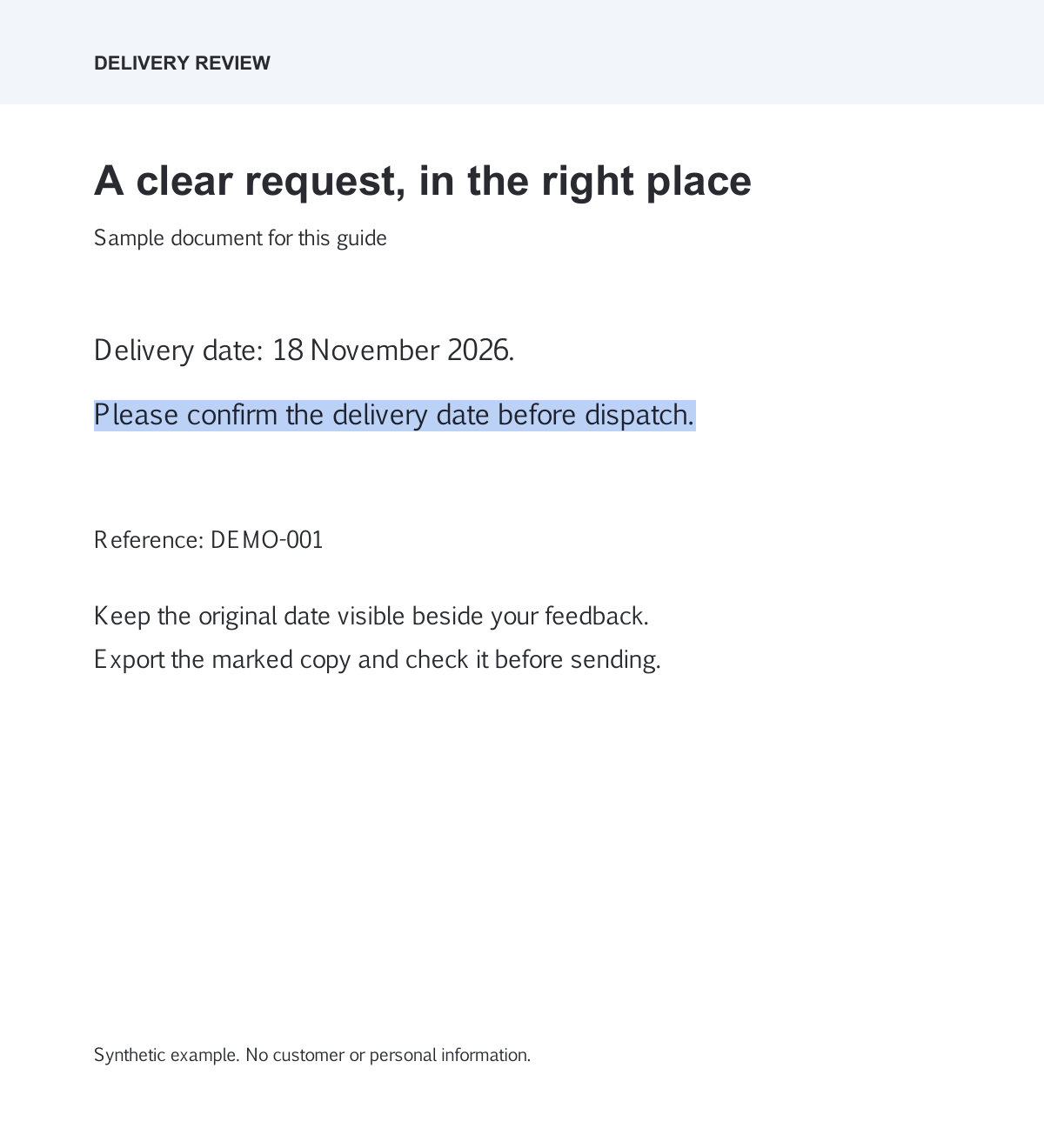
The sample below highlights “Please confirm the delivery date before dispatch.” We added the mark to a synthetic delivery report in Annotate PDF, then exported and reopened it. No text note was added to the sample.
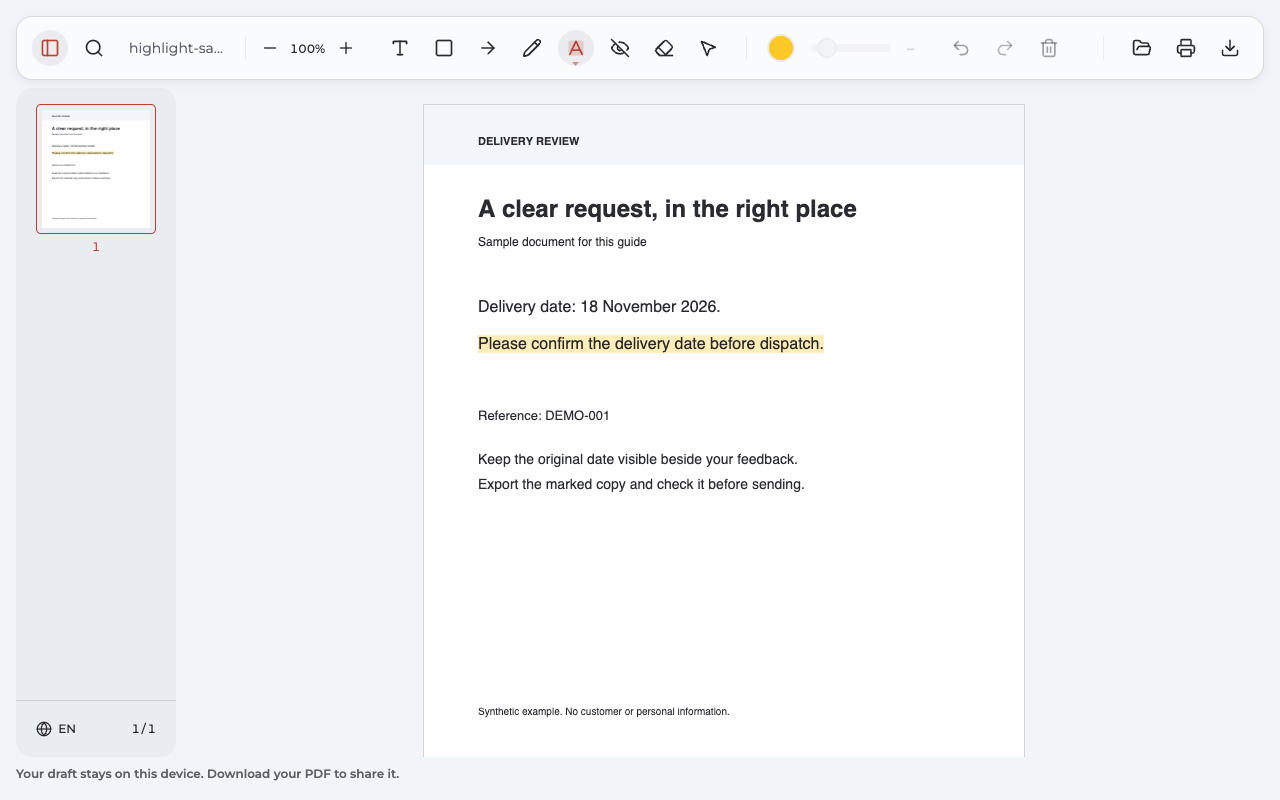
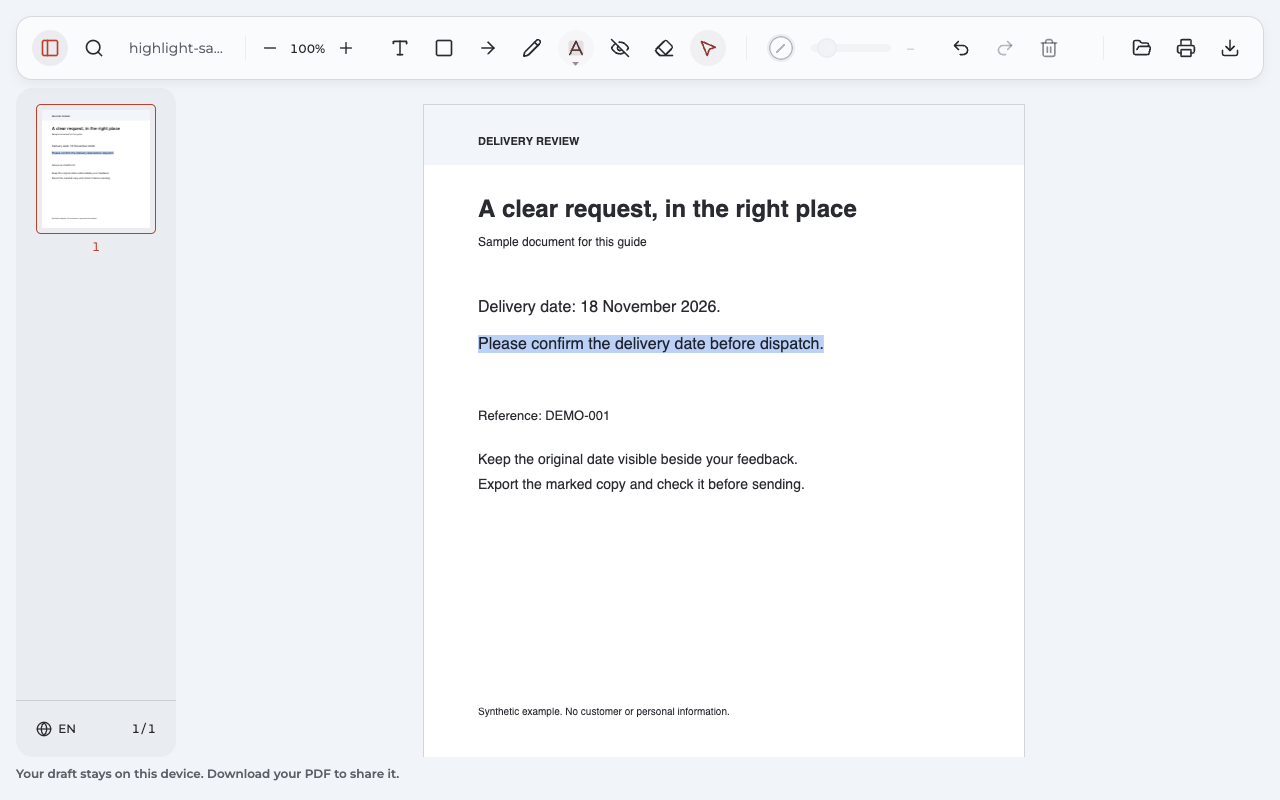
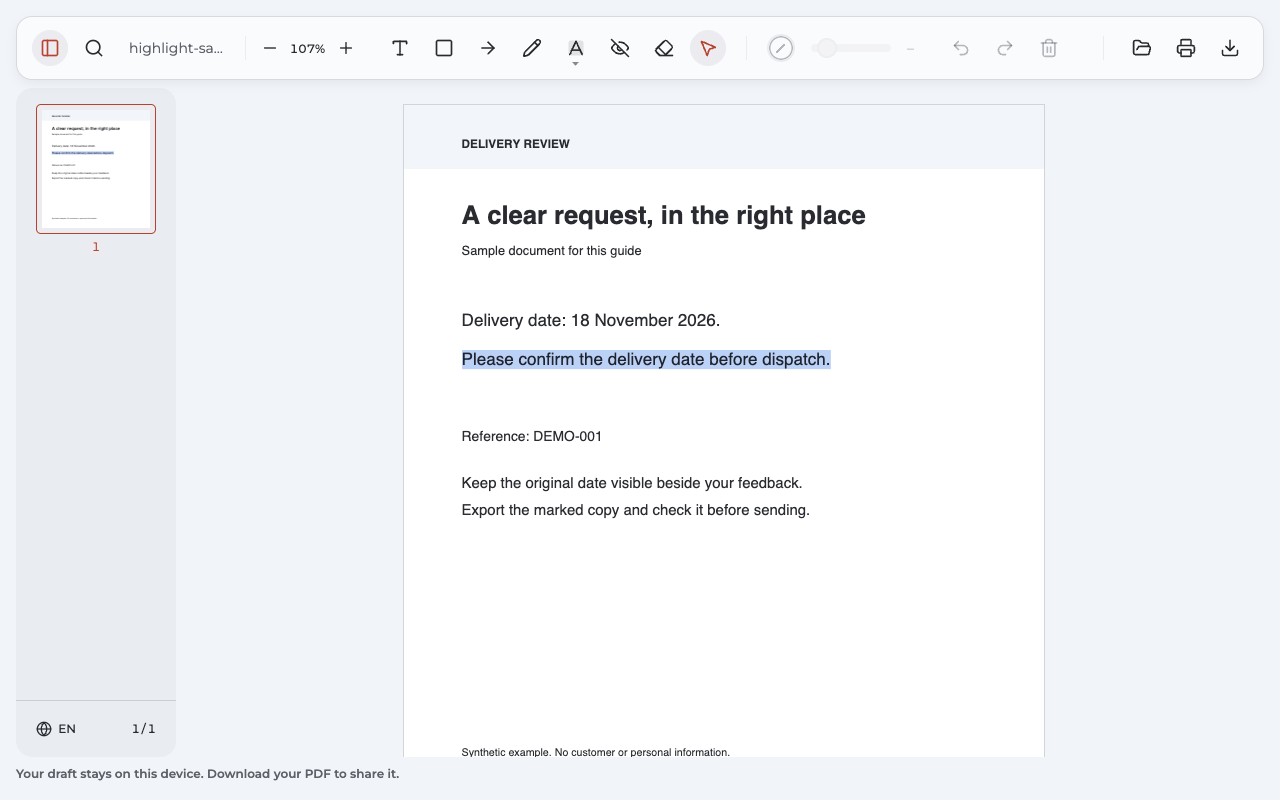
The yellow highlight becomes blue, then appears in the reopened PDF export.
Download the highlighted sample PDF.
Walk through the example and add your own context
First identify the sentence that needs attention. Highlight only that sentence, adjust its color if useful, and inspect the exported PDF page. For a review, you could also add “Please confirm this date with the supplier” beside it. That written-note example is illustrative; it is not shown in the sample file.
For reading notes, a short explanation such as “Use this definition in the introduction” keeps your reason beside the highlight when you return to the PDF.
Why can’t I highlight my PDF?
Start with the symptom you see.
| Symptom | Check first | Next step |
|---|---|---|
| Readable words cannot be selected | Is the page an image, or is text still loading? | Wait and retry, or use the scanned-page options below |
| The highlight covers the wrong words | Does the highlight extend too far, or is the PDF hard to read? | Zoom in, undo, and select a shorter passage |
| A highlight is missing from the sent PDF | Did you send the latest exported PDF copy? | Export again and reopen that download |
| Editing is unavailable | What does the file-status message say? | Obtain a supported copy or use a suitable authorized tool |
Text looks readable but cannot be selected
A scanned PDF may contain a picture of words without a text layer. If Annotate PDF says the text is still loading, wait briefly and try again. If it reports no selectable text, use Rectangle to outline an area when a visual mark is enough.
OCR recognizes words in a scanned image and adds a usable text layer. Annotate PDF does not perform OCR; use a separate tool for that step, then reopen the resulting file if you need to highlight text or search.
The highlight covers the wrong words or lines
Zoom in and try a shorter selection. Use Undo and drag again, or adjust your own highlight’s endpoints with Select (V). Check both ends of the highlight before moving to the next page.
The highlight is missing from the PDF I sent
Compare the attachment with your latest download. The original PDF stays separate from the annotated export. Open the file you intend to send and inspect the highlight on the changed page; if you plan to print it, check print preview as well.
This PDF will not open for editing
Read the message instead of repeatedly dragging on the page. Protected or signed PDFs, interactive forms, and some annotations created elsewhere may need a different workflow. Ask for an authorized static, unencrypted copy when appropriate.
Can I use a PDF reader I already have?
Yes. If a familiar reader already handles your task, you may not need another tool.
| Reader | Basic highlighting path | Useful to know |
|---|---|---|
| Annotate PDF in desktop Chrome | Open → Highlight → select words → Export | Requires the extension; processes your document locally |
| Preview on Mac | Select text, use Highlight and choose a color, then save | Built into macOS; suitable for selectable text |
| Adobe Acrobat Reader | Open the PDF, use Highlight, select the passage, and save a copy | Basic commenting, including highlighting, is available in free Reader |
Microsoft Edge’s PDF reader also supports highlighting: select text and use Highlight from its contextual menu. In any reader, reopen the saved result before sharing it.
Questions about highlighting a PDF
How do I remove highlights?
In Annotate PDF, select your highlight and press Delete, or use Eraser. Supported Annotate PDF exports can restore each highlight for later removal. Highlights flattened into page artwork or created by other apps may not be editable here; return to the original file or app.
Can I change the highlight color after marking text?
Yes. Choose Select (V), click your highlight, and change Annotation color. That color also becomes the default for future highlights. Deselect the highlight first if you only want to choose a new color for the next passage.
How to highlight a PDF for free or without Adobe?
Mac users can use built-in Preview. Free Acrobat Reader lets you highlight text, while Annotate PDF is another desktop-Chrome option without Acrobat. Check the current installation and export terms of any tool you choose before starting.
Can I follow these steps on a phone or tablet?
The Annotate PDF steps here are for desktop Chrome. On a phone or tablet, use a PDF reader designed for that device; its selection and save controls may differ. Inspect the saved copy before sending it.
Does the recipient need the extension to see my highlights?
You send an exported PDF, so the recipient does not need Annotate PDF just to open the file. Check that your highlights display correctly in their intended viewer. Editing a highlight later is a separate compatibility question.
Related: How to add a text box to a PDF.