

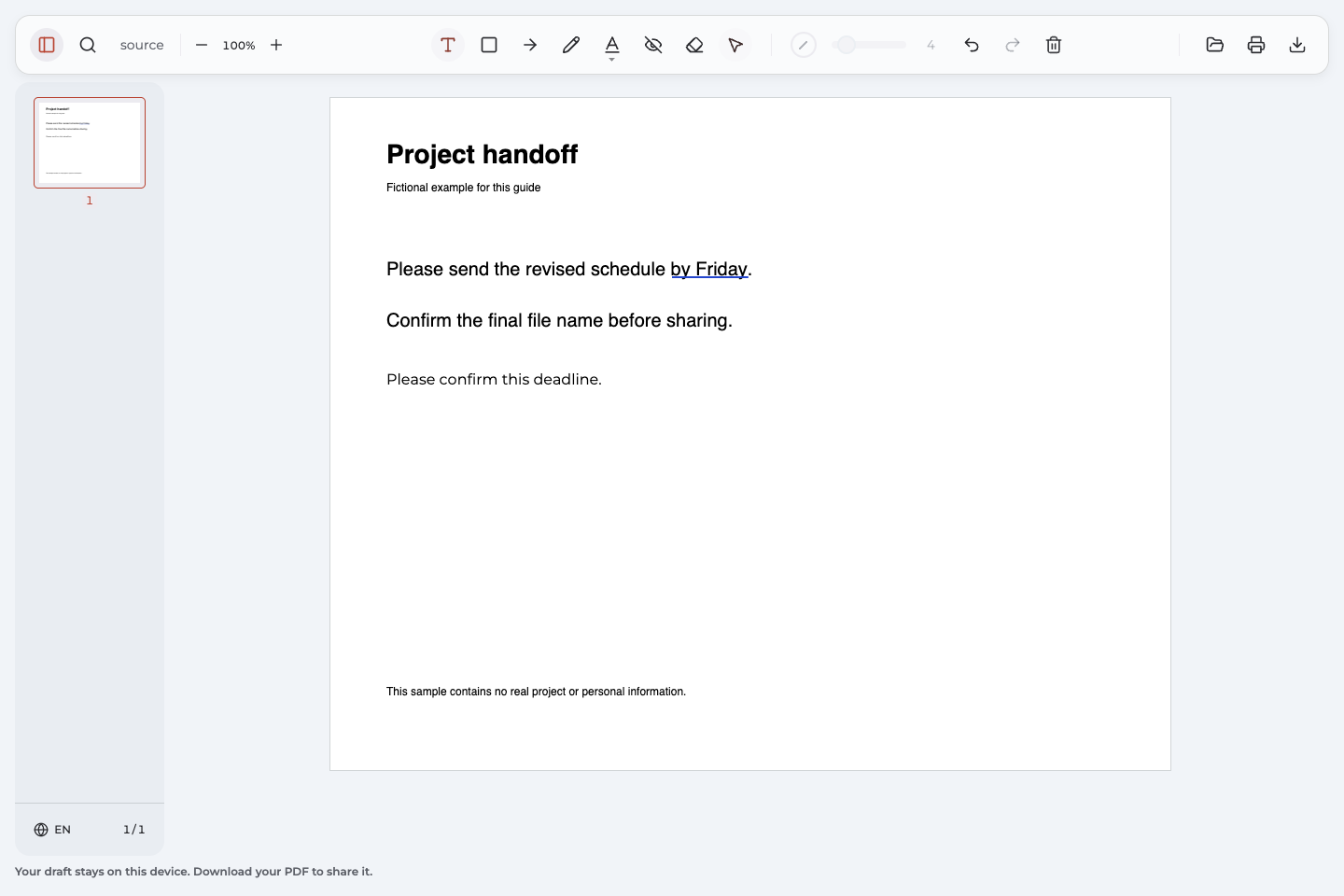
To underline text in a PDF, open the document in a reader with annotation tools, choose the Underline tool, and drag across the words you want to mark. Save or export the document, then reopen that copy to check the line. In Annotate PDF, Underline is in the menu shared with Highlight.
An underline annotation places a line beneath existing words without changing the original text. It can identify a deadline, a phrase to revise, or a passage you want to find again.
Choose the kind of underline you need
Check what you are marking before choosing a tool. A PDF file can contain selectable words, page images, or a mixture of both.
| What you need to mark | Which approach fits | What to expect |
|---|---|---|
| Existing words you can select | Use an underline tool. | The line follows the selected passage. |
| Words visible only as part of an image | Use Pen to draw a line if a visual mark is sufficient. | You mark the page image; the words do not become selectable. |
| Text you are entering in an interactive form | Use a form-capable application that supports the required formatting. | This is field formatting, a separate task from annotating a passage. |
How to underline in PDF with Annotate PDF
The steps below use Annotate PDF in desktop Chrome. This workflow requires the extension to be installed; a managed work or school computer may restrict installation. The document is processed locally on your computer, and its PDF contents are not uploaded to a server.
1. Open your document
Choose Open PDF and select your PDF file. Go to the page you want to review. Start with a short phrase so you can check the result before marking a longer passage.
2. Choose Underline
Click Highlight to activate the tool, then click the active button again to open its menu. Choose Underline. The underline tool is now ready to mark selectable words.
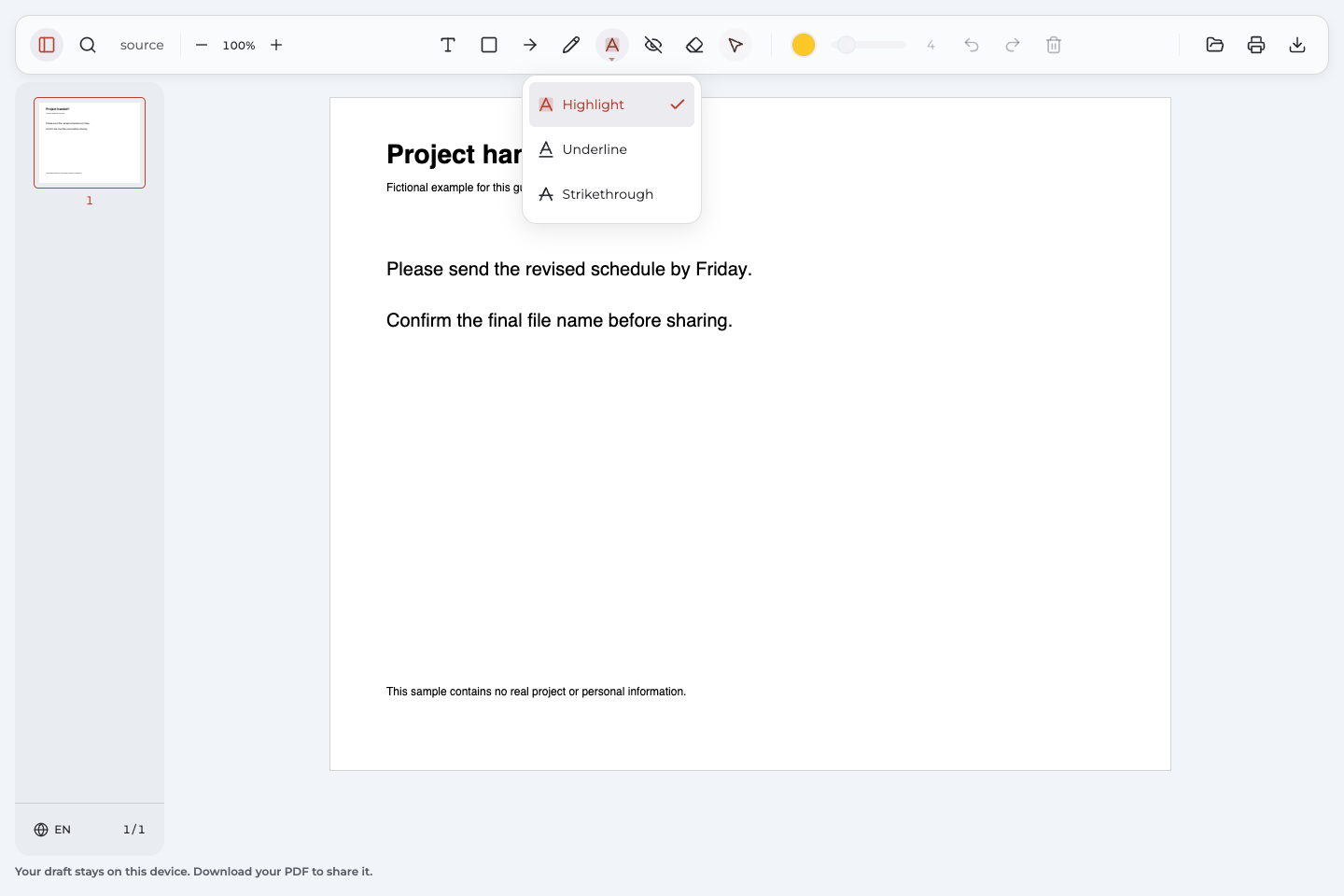
My toolbar button already says Underline or Strikethrough
The shared button can display the last-used markup mode. Activate that button if necessary, then click it again to open the menu and choose Underline. Check the selected mode before dragging across the page.
3. Mark the intended words
Drag from the beginning to the end of the phrase, then release. A line should appear beneath those words. Check both ends: the mark should include the phrase you meant to identify without extending into the next part of the sentence.
Correct a line beneath the wrong words
Use Undo immediately after the mistake, then drag across the intended range again. To remove a mark you added earlier in the session, choose Select, select your underline, and use Delete selected annotation. The unwanted mark disappears so you can replace it.
4. Set a readable line
Choose an underline color from the color picker and adjust Line width for a mark that remains readable against the page. Check a short sample before continuing. A thicker line can compete with small letters or neighboring text.
| Tool or setting | Use it for | Check on the page |
|---|---|---|
| Underline | Emphasizing selectable words from below | The correct phrase is marked. |
| Highlight | Adding color across a passage | The words remain easy to read. |
| Pen | A freehand mark, including on a page image | The drawn mark points to the intended area. |
| Color and Line width | Adjusting the appearance of an underline | The line is visible without crowding the letters. |
Make the meaning clear without relying on color
If different colors stand for different requests, add a short explanation beside the relevant passage. A recipient should not have to guess whether blue means “check this date” or “approved.” Read the note and line together at the size you expect to use.
5. Export and check the copy
Choose Export document to download the annotated PDF. Open the PDF you just downloaded and inspect the marked passage. Check the filename too, so you send the finished copy instead of the unmarked source.
Keep that downloaded copy as a separate file. A recoverable project in the extension is useful while working, but it is not an independent backup of the document you intend to send.
See the marked file before you send it
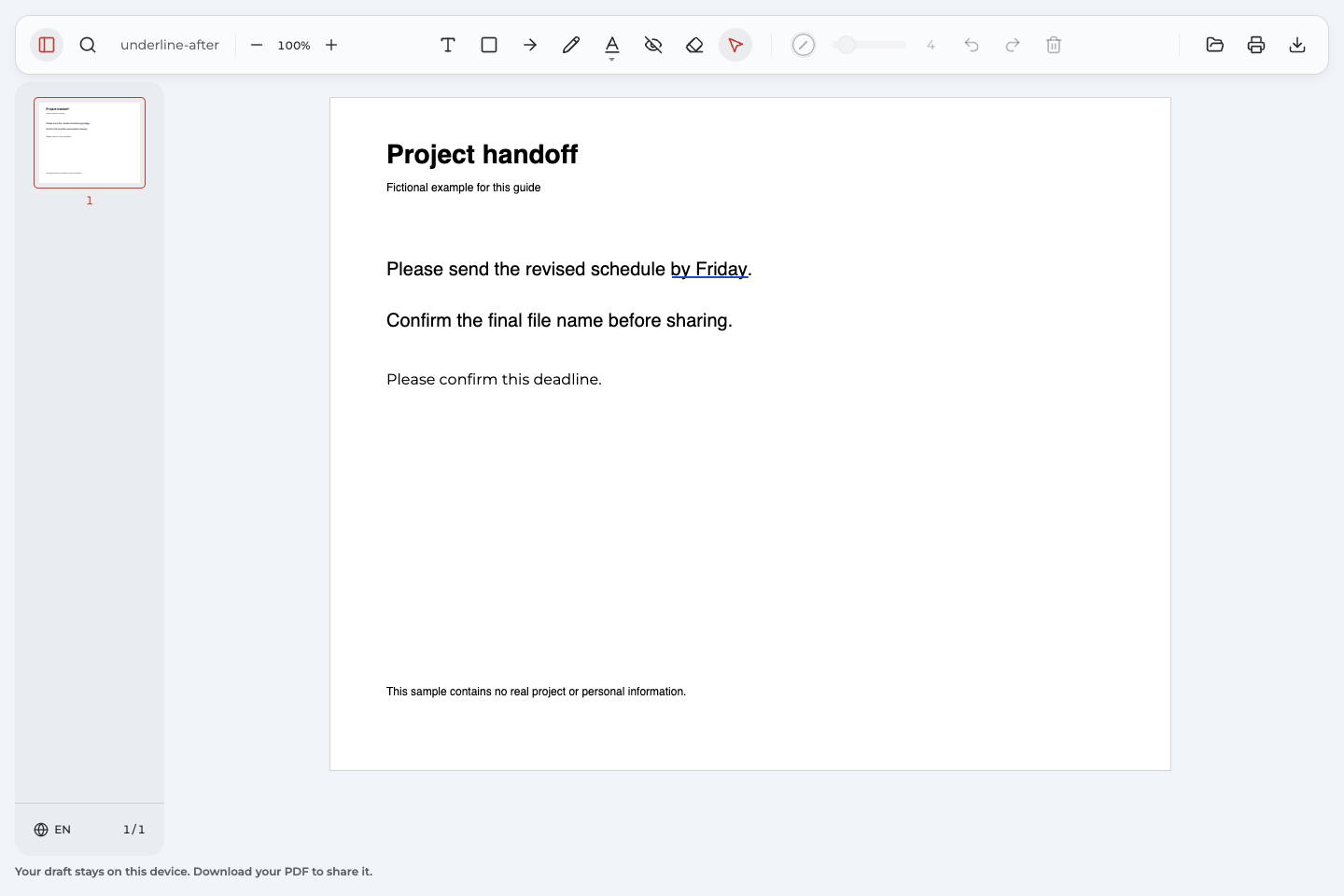
This fictional handoff example asks for a revised schedule “by Friday.” The blue underline identifies the deadline; the nearby note says, “Please confirm this deadline.” The recipient can see both the location and the requested clarification.
Compare the unmarked sample PDF with the downloaded annotated sample. The image below shows the exported document reopened in Annotate PDF, with the underline and note intact.
What the example demonstrates
The sample starts as a one-page PDF with selectable text. The words “by Friday” receive a blue underline, and a text note explains the request. After export, the downloaded file is reopened to check both marks. This is a demonstration using fictional content, not a customer document or a guarantee about every PDF viewer.
Add a reason next to the mark
Underlined text shows where to look; a short note can explain what to do. For a review, use a specific request such as “Please confirm this deadline.” While reading a training document, you might underline a requirement and add “Check this before the next submission.” Keep the explanation close enough to connect it to the passage.
Use Preview on a Mac or your existing PDF reader
If your current reader already has the annotation tools you need, you can use it for the same mark-and-check task.
Underline in Preview on Mac
- Open the PDF in Preview.
- Select text you want to mark.
- Click the arrow beside the Highlight button, then choose Underline.
- Save the document and check the saved copy.
To remove an underline in Preview, Control-click the marked text and choose the corresponding Remove command. Apple's Preview guide explains the available text markup options.
Already using Adobe Acrobat Reader?
Adobe Acrobat Reader also provides text annotation tools. Look for Underline text in the commenting controls available in your interface; Adobe's commenting guide shows it among the actions for selected text. Save your changes and inspect the resulting file before sharing it.
Why will the words not underline?
Check the symptom before trying another tool. A different underline tool cannot fix every document restriction or missing text layer.
Dragging does not select any words
Try a different passage on the same page. If no words can be selected, the page may be an image, as in a scanned PDF without recognized text. When a visual mark is enough, use Pen to draw a line beneath the passage. If you need actual text selection, obtain a text-based copy or use a separate OCR tool first; Annotate PDF does not recognize scanned text.
I get a highlight or strikethrough instead
Check the shared markup button's current mode. Open its menu and choose Underline, then try a short phrase again. Undo the unwanted mark before continuing. The next mark should appear beneath the words.
The line includes too much of the sentence
Undo the mark, zoom in for a closer view, and start the drag at the intended first word. Release at the last word you need. Inspect the new range before marking the next passage.
The PDF refuses editing, or an existing line will not delete
A protected or otherwise unsupported document may prevent annotation; ask the sender for a permitted, editable copy. A line already embedded in the page may not be an editable annotation. Flattening a mark does not necessarily remove the document's selectable words, so test the text separately. Do not assume that being able to select words means you can delete every existing mark.
Questions about underlining a PDF
How to underline in PDF when words will not select?
For a visual mark, draw beneath the words with Pen. For an underline attached to the words, you need selectable text. Check the selection troubleshooting above to distinguish an image page from the wrong tool mode or a restricted document.
Can I use Ctrl+U to underline?
Do not assume that Ctrl+U works in every PDF editor. Shortcuts depend on the application and the active tool. In Annotate PDF, use the shared Highlight menu to choose Underline.
Can I remove my underline after saving?
You can select and delete your own underline in a supported Annotate PDF export when its annotation data remains intact. Reopen the exported copy, remove the mark, and export again. Reopening does not restore the previous session's Undo history, and this does not promise removal of marks made by another application or flattened into the page.
Will the recipient see the underline, and will it print?
Export the marked document, then inspect that file in the viewer you intend to use. The sample above preserves the marks after export and reopening. For paper output, check print preview and the resulting page; viewer settings can affect how annotations print.
Does this underline an answer typed into a form?
These instructions cover a mark beneath existing page text. Formatting an answer inside an interactive form requires a tool that supports that field and its formatting options; Annotate PDF's underline annotation does not provide that workflow.