

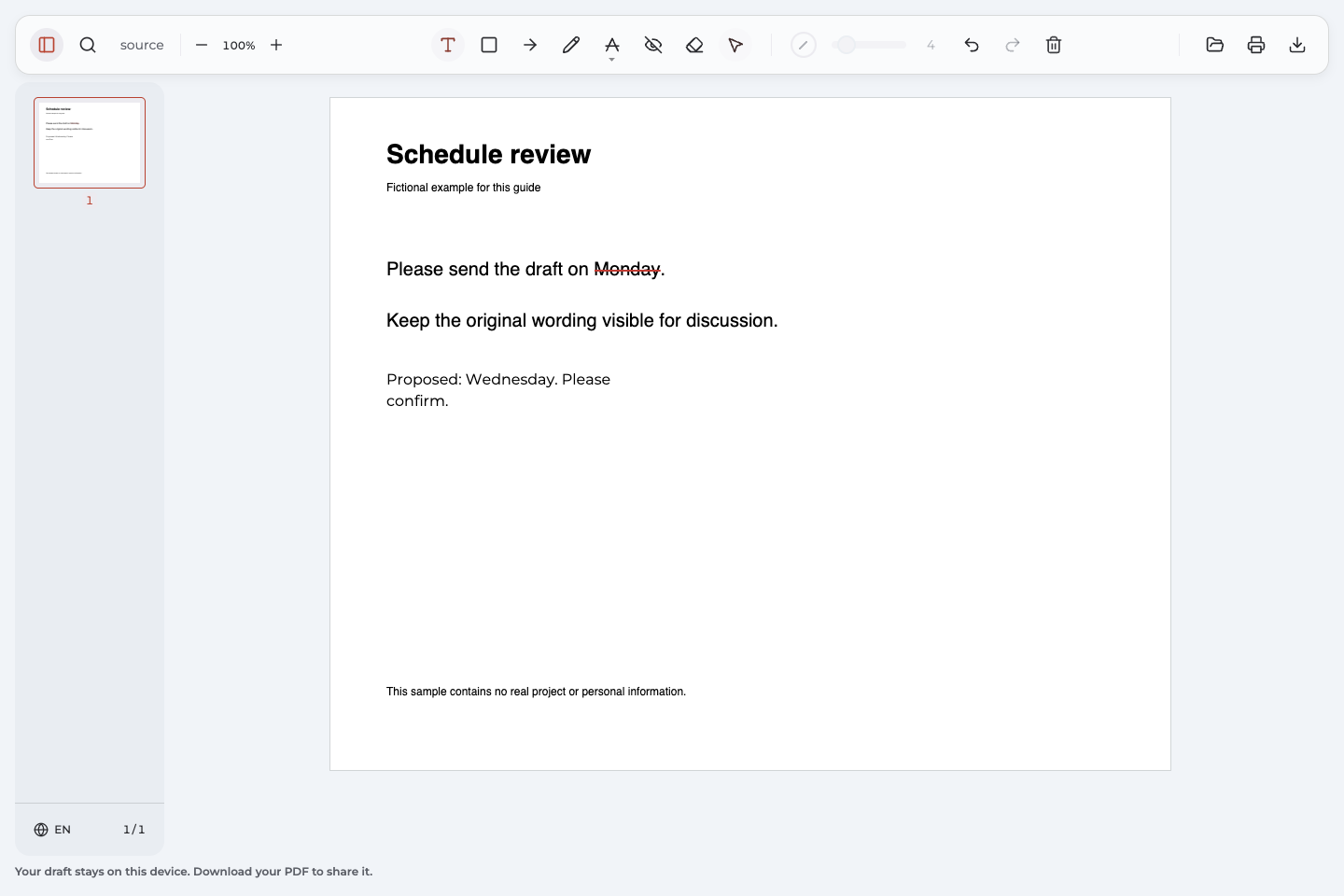
To strikethrough text in a PDF, choose the Strikethrough tool in your PDF reader and select the text you want to cross out. Add a note if the reader needs an explanation, then export or save the marked copy and reopen it. In Annotate PDF, Strikethrough is available from the shared Highlight menu.
What does strikethrough mean in a PDF?
A strikethrough annotation puts a visible line through existing text while leaving the words in the document. In a review, it can mean “please remove this” or identify wording you want someone to reconsider.
The original text stays readable and present in the file. Crossing out “Monday” and adding “Proposed: Wednesday” communicates a suggestion; it does not change the sentence or accept a revision.
| Mark | What it communicates | What the reader still needs |
|---|---|---|
| Strikethrough | Consider removing or revising these words. | An explanation or replacement suggestion when the intent is unclear. |
| Underline | Pay attention to this passage. | A note if attention alone does not explain the request. |
| A separate text note | Here is the requested wording or reason. | The marked passage that identifies where the request applies. |
These marks prepare a review copy. Producing revised source wording or securely removing sensitive content requires a different operation.
How to strikethrough in PDF with Annotate PDF
This workflow uses the Annotate PDF extension in desktop Chrome. Install the extension before starting; your organization may restrict installation on a managed computer. Your PDF is processed locally, and its document contents are not uploaded to a server.
1. Open the document you want to review
Choose Open PDF and open your file. Find the sentence that needs attention. Read the whole sentence first: crossing out a single date or word may communicate your request more precisely than marking the entire paragraph.
2. Choose Strikethrough
Click Highlight to activate the shared markup button. Click the active button again to open its menu, then choose Strikethrough. You can now strikethrough text by dragging across selectable words.
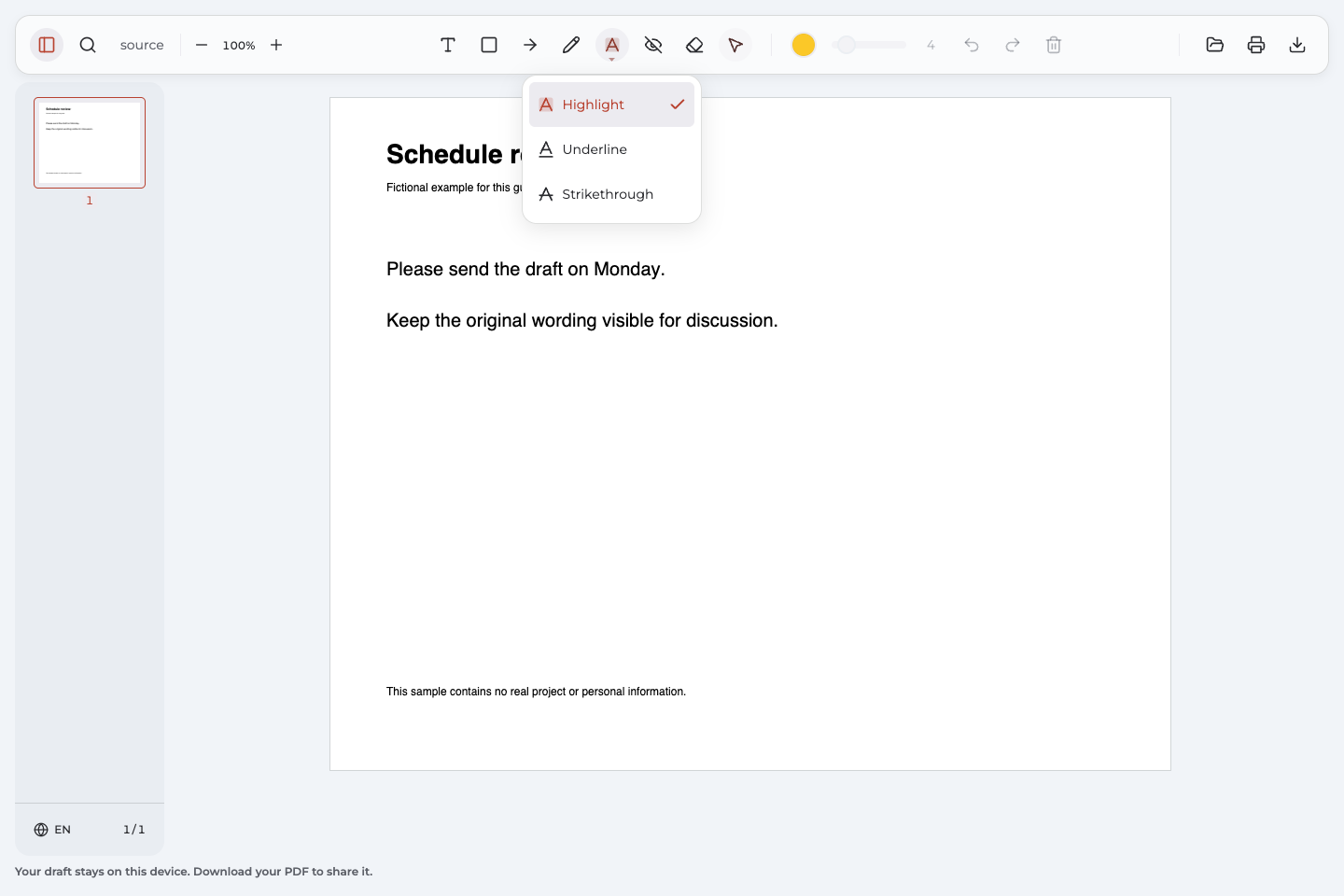
The button has a different name
The button can show a previously used mode, such as Underline or Strikethrough. Activate the displayed markup button if necessary, then click it again to see the menu. Choose the mode you need before marking the passage.
3. Select the intended passage
With Strikethrough active, select the text by dragging from the first intended word to the last. Release the pointer to create the mark. Check that the line crosses only the words you want the recipient to review.
I marked the wrong range
Use Undo, then select the text again. For an older mark in the current document, choose Select, click your mark, and use Delete selected annotation. Then create a new mark over the correct words. A text-bound strikethrough follows its selected passage; repositioning a separate text note is a different action.
4. Keep the crossed-out words readable
Use the color control and Line width to adjust the mark. Before you strikethrough text throughout a document, inspect one short example at a comfortable reading size. The recipient should be able to read what you are proposing to remove.
| Control | Useful adjustment | Expected result |
|---|---|---|
| Color | Choose a color visible against the page. | The review mark can be distinguished from surrounding content. |
| Line width | Keep the line thin enough for the letters to remain legible. | The passage is crossed out without obscuring its wording. |
| Zoom | Inspect the beginning and end of a short mark. | You can check the selected range before continuing. |
Should every type of request have its own color?
Color can help organize a review, but it cannot explain a request on its own. If a red mark means “delete” and another color means “check,” state that meaning in a nearby note. A written request also remains understandable when someone views the document without your color conventions.
5. Add proposed wording when needed
Choose Text, click near the marked passage, and type a short explanation. Position the note where it is easy to connect with the mark without covering another sentence. This text annotation adds your request to the page; it does not replace the words you crossed out.
Make the proposed change clear
Show the words and the requested revision together
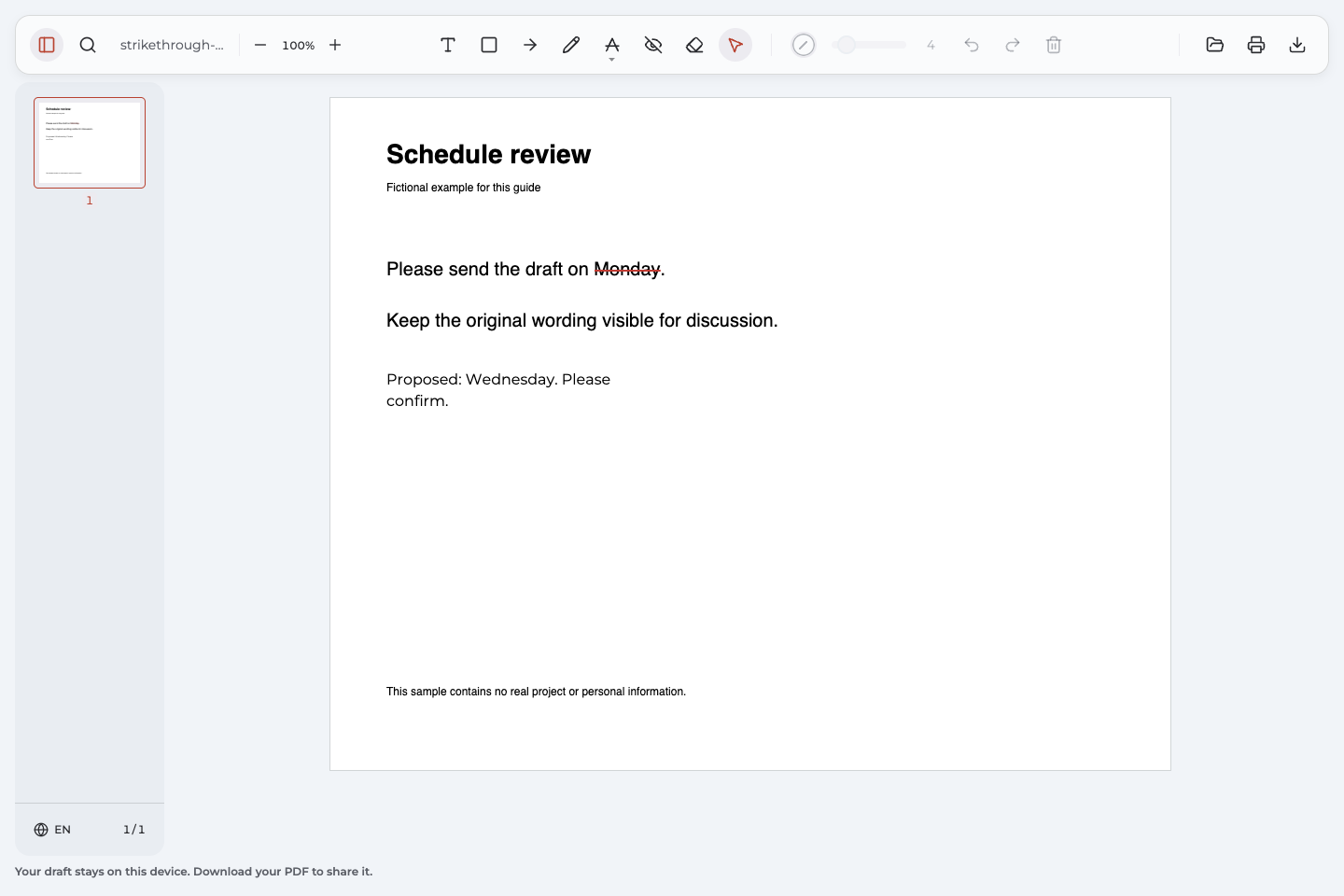
In the fictional example below, the sentence reads, “Please send the draft on Monday.” A red mark crosses out “Monday,” and a separate note reads, “Proposed: Wednesday. Please confirm.” The proposed changes are visible, while the existing deadline remains available for discussion.
Compare the unmarked sample with the exported review copy. The screenshot shows that exported copy reopened in Annotate PDF.
What changed in this example?
The sample gained a red strikethrough annotation and a visible note. After export and reopening, both marks were present, and “Monday” remained selectable. The source sentence was not rewritten. This demonstration uses fictional content to show the returned file, rather than an accepted change to a real schedule.
Use the same approach for a phrase that should be removed without replacement: cross out the phrase and explain why it is unnecessary. Keep the note specific enough that the recipient can act on it without guessing which words you meant.
Save the marked copy and check it
After you strikethrough text in Annotate PDF, save the document with Export document. Open the downloaded PDF, rather than relying only on what remains visible in the editor.
Check the file you will send
- Confirm that the filename identifies the reviewed copy.
- Check the first and last word of each important mark.
- Read the crossed-out wording and its note together.
- Inspect the file in the viewer you intend to use; check print preview if the review will be printed.
Keep the downloaded file as an independent copy. Local project recovery can help during a session, but it does not replace keeping the finished document you plan to share.
Revise a mark after exporting
A supported Annotate PDF export can retain your own editable annotations. Reopen it, select the unwanted mark with Select, delete it, and export the updated copy. This requires the annotation data to remain intact. Reopening does not bring back the previous session's Undo history, and marks flattened into a page or created by another tool may not be editable.
Use the strikethrough controls in your current reader
You may already have a reader whose annotation tools suit the task. Use its text markup controls to strike out the relevant words, then check the saved result.
Preview on Mac
- Open your PDF in Preview and select the text you want to mark.
- Click the arrow next to the Highlight button.
- Choose the strikethrough option.
- Save your changes and inspect the marked copy.
To remove a mark in Preview, Control-click the marked passage and choose the corresponding Remove command. Apple's Preview text markup guide describes these controls. You do not need to draw a freehand stroke when the text can be selected.
Why is strikethrough not working?
Match the symptom to the next check. You need selectable words to strikethrough text; a visible sentence on the page does not always provide them.
Dragging does not select words
Try another passage on the page. If none of the words select, the page may be an image without a usable text layer. For a visual review mark, Pen can cross the relevant area. If actual selection is necessary, obtain a text-based copy or use OCR in another application first. Annotate PDF does not recognize scanned words.
The mark appears beneath the words or highlights them
Open the shared markup menu and check the active mode. Choose Strikethrough, undo the unwanted mark, and select a short phrase again. The next mark should cross the words rather than appear underneath or across their background.
The mark extends into words I want to keep
Undo it and zoom in to inspect the word boundaries. Start a fresh selection at the intended first word and release at the last. Check the range before adding the explanatory note.
An existing mark will not delete
Check whether the line is one of your editable annotations. A line flattened into the page can remain visible without being separately selectable. That does not necessarily prevent you from selecting the existing text beneath it. If the document restricts annotation or is unsupported, ask its sender for a permitted, editable version.
Questions about crossing out PDF text
How to strikethrough in PDF when the words will not select?
If a visual mark is sufficient, use Pen across the relevant words. To strikethrough text using its selectable range, you need a usable text layer. Follow the selection check to decide whether to obtain a text-based copy or choose a visual workaround.
Does crossing out a word delete it?
No. A strikethrough leaves the word in the PDF and marks it for review. It does not permanently remove sensitive information or apply a replacement. Use a separate note to explain the requested revision.
Can I remove strikethrough text after saving?
You can remove your own editable mark from a supported Annotate PDF export with intact annotation data. Deleting the mark removes the crossing line, not the source words. See revising an exported copy for the reopening limits.
Is there a keyboard shortcut for strikethrough?
A keyboard shortcut depends on the PDF application and active mode; text formatting commands from another app may not apply. In Annotate PDF, use the shared Highlight menu to choose Strikethrough.
Will the recipient see the crossed-out words?
The exported sample above retains the mark and its separate note. Check your own downloaded file in the intended viewer before sending it, and inspect print preview for paper output. The recipient should receive the marked copy, with the underlying wording still readable.