

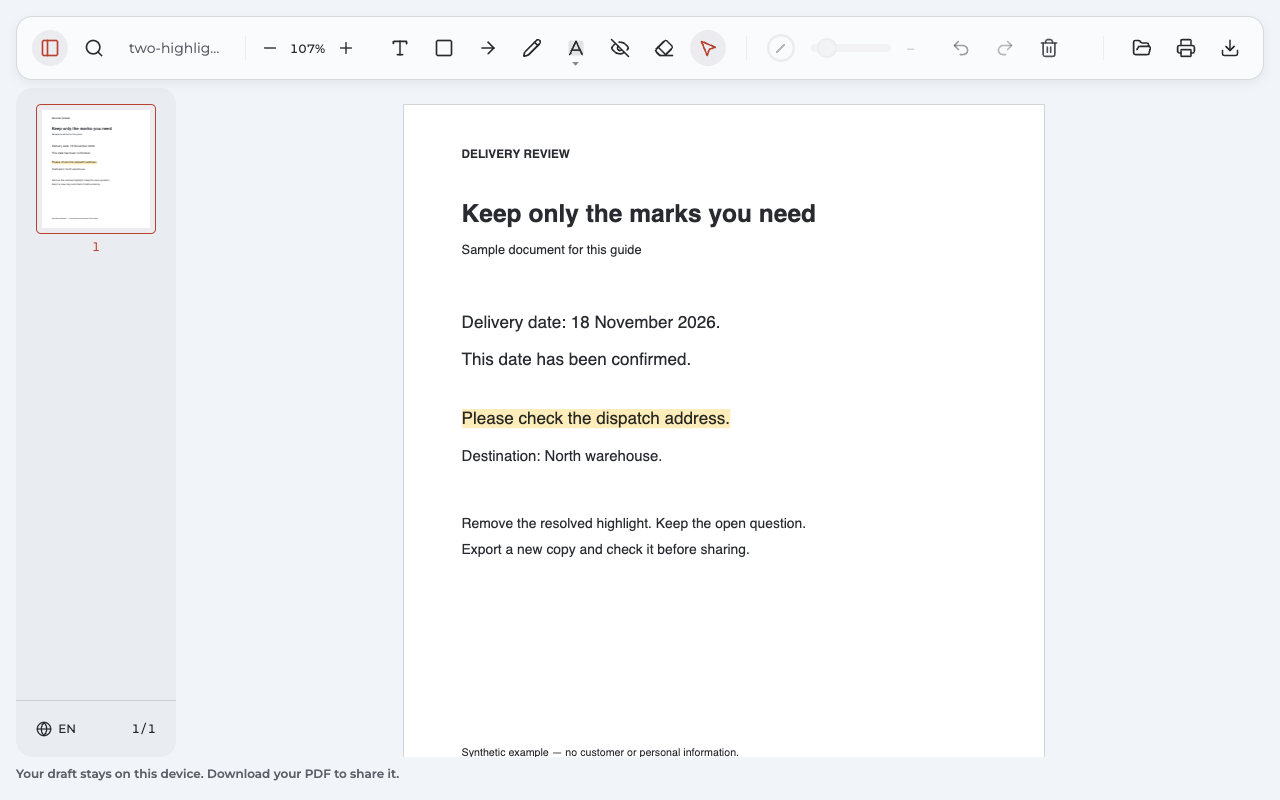
Here’s how to remove highlighting in PDF files: select an editable highlight, delete it, and export a new copy. If the color is part of the page itself, get an unmarked original or correct the source document.
The right method depends on who added the mark and how the file was saved. You can remove highlights in Annotate PDF when they are its own editable annotations, including those restored from supported exports with their annotation data intact. It does not make every highlight from another app editable.
Which kind of highlight are you trying to remove?
Start with this check before choosing a PDF editor. It can save you from installing a tool for a mark that cannot be deleted as an annotation.
| What you see | What to check | What to do |
|---|---|---|
| A mark you added in Annotate PDF | Open the latest Annotate PDF export and try Select. | Follow the four steps below; the selected mark should disappear while the words remain. |
| A permanent mark from another app | Check whether the originating app recognizes it as a comment or annotation. | Remove it there, or use a compatible reader that can select that annotation. |
| Color that follows a search or dragged text | Close the search or click away from the text selection. | If the color disappears, it was temporary viewer feedback; there is no saved mark to delete. |
| Colored boxes around form fields | Check the reader’s field-highlighting display setting. | Hide the field shading if desired; this changes the display, not the field’s contents. |
| Color embedded in a scan or exported page | Check the source file or ask the sender for an unmarked version. | Use the clean original or correct the source before creating another PDF. |
What counts as an editable highlight?
An editable highlight is an annotation over a passage, separate from the original text. In a compatible editor, you can select that mark as an object. Highlighted text alone does not prove the annotation is editable: color may already be part of the page artwork.
How do you remove highlights in Annotate PDF?
Use this route for marks created in Annotate PDF, on desktop Chrome. The extension processes your PDF document locally without uploading it to a server. If your marks came from another PDF editor, try that app first.
Open the correct copy
Keep your original file as a backup. Open Annotate PDF and choose the PDF file containing the marks you want to change. To remove highlights from earlier work, use the latest exported copy, not the unmarked source or an older attachment.
Supported Annotate PDF exports restore their own annotations for editing. If the editor reports a file limitation, follow the message before attempting cleanup.
Select the mark
Choose Select (V), then click the colored passage to select the highlight. You should see its selection controls. Make sure you selected the resolved comment rather than a nearby mark you still need.
If clicking adds another mark, switch out of the highlighting tool and choose Select. If nothing becomes selectable, use the troubleshooting checks below.
Delete the selected annotation
Click the toolbar’s trash icon, labeled Delete selected annotation. The selected highlight disappears; the underlying passage stays visible. Delete highlights only when you no longer need that feedback.
Deleted the wrong mark?
Use Undo while you are still in the current editing session. Redo reapplies the deletion. Check the passage again before exporting. Keeping the original download gives you a separate backup if you later need an earlier version.
Can I use the Eraser instead?
Yes, for your own editable annotations: choose Eraser (E) and click the mark. It removes the whole annotation. It does not erase individual page pixels, original words, or marker color embedded in a scan.
Export and check the downloaded copy
Choose Export to download the updated PDF. Open that new download and check three things: the unwanted mark is gone, the words are readable, and the notes or highlights you meant to keep are still present.
Send this checked copy. An older email attachment or download does not update when you remove highlights in the editor.
What should the finished PDF look like?
Our example starts with two review highlights. The delivery date has been confirmed, so we remove that mark and leave the address question highlighted for the recipient.
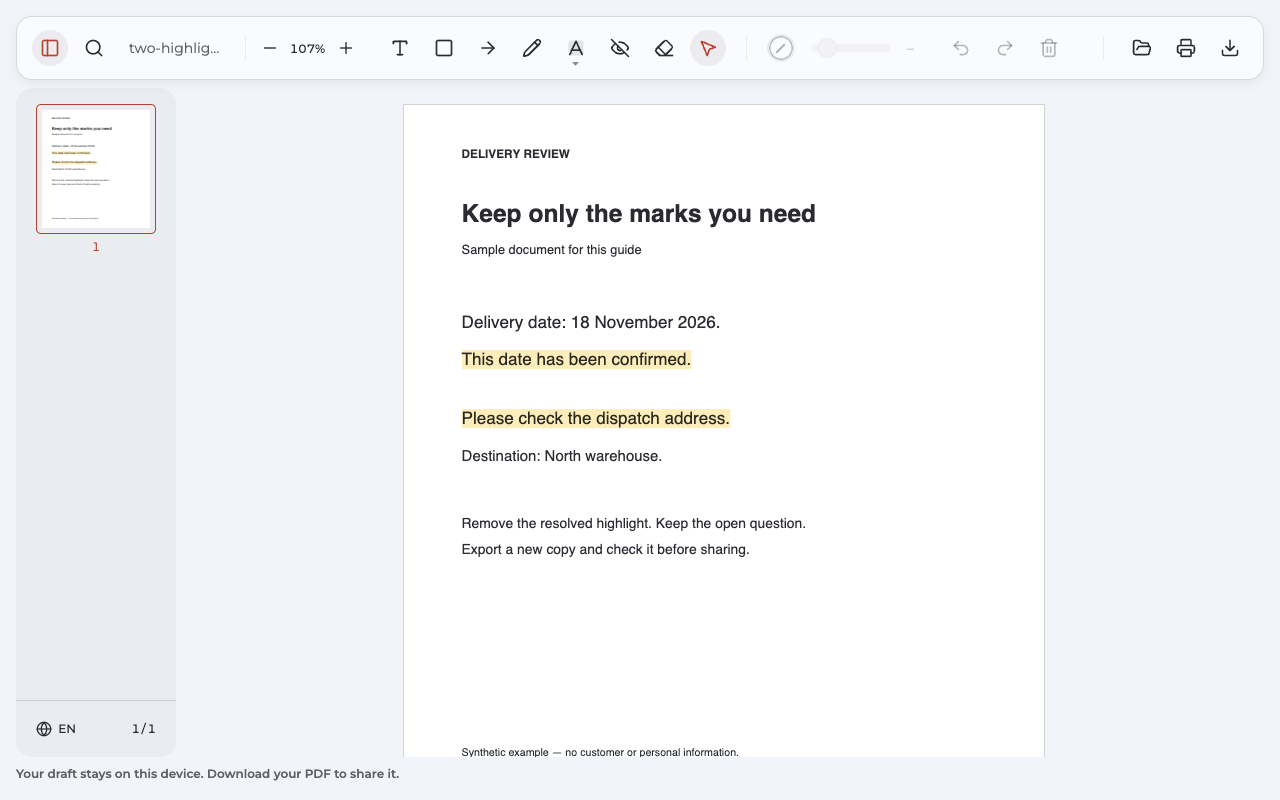
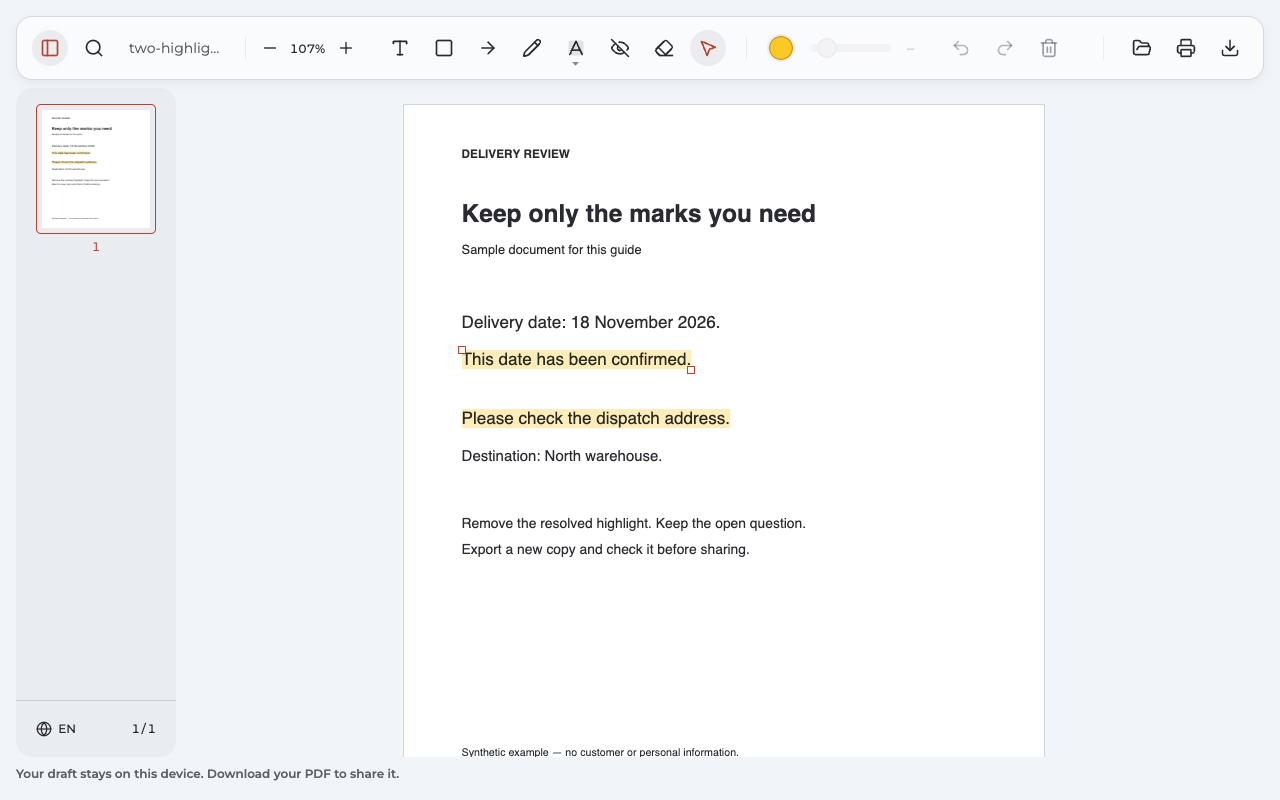
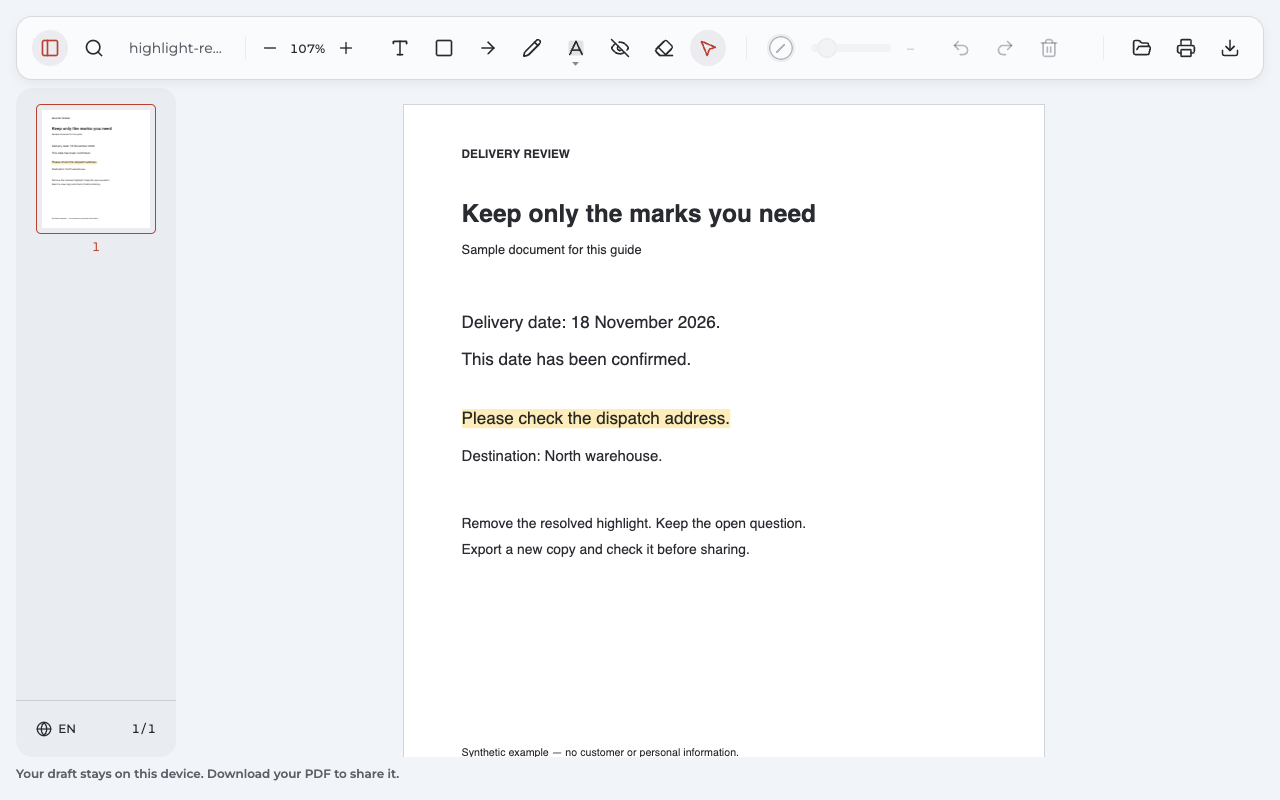
Compare the actual files: before cleanup, one highlight removed, or a separate copy with all highlights removed.
Why keep the second highlight?
Removing resolved feedback helps the recipient see what still needs attention. In this example, deleting only the date mark preserves the unanswered address question. We reopened the exported result and checked it independently: both final sample files retain the same underlying words as the source. Check your own output in the same way before sharing it.
How to remove highlighting in PDF files that will not select
A failed click does not prove a mark is flattened. Check the active tool, the app that created the annotation, and any file restriction first.
| Problem | Check and next action | Expected result |
|---|---|---|
| Clicking draws another highlight | Switch to Select before clicking the existing mark. | An editable own mark becomes selected instead of adding a new one. |
| A mark from another app will not select | Reopen it in the originating PDF editor or a compatible annotation reader. | If it is supported there, you can delete it as an annotation. |
| Color is built into a scanned PDF or flattened page | Find an unmarked original, or correct the source and export again. | A new clean source replaces the marked page; an annotation tool cannot recover the covered background. |
| The editor reports protection or unsupported content | Read the message and request an authorized, compatible copy from the sender. | Continue editing when a suitable file is available. |
| The mark returns in the file you send | Check that you opened and attached the newest export. | The recipient gets the version you actually inspected. |
For highlight removal from flattened content, a white rectangle is not a clean recovery: it may cover the words as well as the color. Cropping can remove useful content, too. OCR can make scanned words searchable, but it does not automatically remove physical marker ink. Annotate PDF does not provide OCR.
Why does the Delete key do nothing?
Keyboard focus may still be on a toolbar button. In Annotate PDF, select the mark and click Delete selected annotation instead. If the mark itself cannot be selected, use the cause checks above; repeatedly pressing Delete will not make a foreign or flattened mark editable.
Can you delete all highlights at once?
In Annotate PDF, Clear all removes every own annotation across the document’s pages, including notes and shapes. It is not a highlights-only command. To keep other feedback, delete highlights individually.
| Your goal | Appropriate action |
|---|---|
| Remove a few resolved marks | Select and delete each unwanted highlight. |
| Remove all own annotations | Choose Eraser, then Clear all, only when notes, shapes, and highlights should all go. |
| Remove all highlights while keeping other comments | Use individual deletion or a compatible editor’s annotation-type selection. |
Highlights-only cleanup in Foxit PDF Editor for Windows
Foxit’s Windows instructions use the Comments panel. Sort by Type, expand the Highlight group, select the range of marks with Shift, then right-click and choose Delete.
Before you delete highlights in bulk, check that the selected group contains only the marks you want removed. Save a new copy and inspect it. This is Foxit’s documented Windows workflow; the available controls can depend on the version.
Removing a highlight in Preview on Mac
In Preview, Control-click the highlighted passage and choose Remove Highlight. To locate marks, choose View → Highlights and Notes. Apple describes both actions in its Preview guide.
Turning off Preview’s highlighting mode only stops you from adding new marks. It does not remove highlights that are already saved.
Questions about removing PDF highlights
Can I unhighlight a PDF without deleting the words?
Yes, when the highlight is an editable annotation. Delete that annotation rather than editing the page content. The selective-removal sample above keeps the words and the other review mark. If the color is embedded in the page, obtain a clean source instead of covering the passage.
Can I undo a deletion after reopening the export?
Reopening a supported Annotate PDF export restores its surviving annotations, but not the previous session’s Undo history. To recover an already deleted mark later, return to an earlier saved copy or add the mark again. Keep the earlier file until you are satisfied with the final version.
Can I do this without buying another app?
Check your current reader first. Preview on Mac includes the removal command described above. If another app created the marks, it may already provide the action you need. Before choosing a new PDF editor, check its current editing and download conditions; a free upload alone does not establish free export.
What if I only want a different highlight color?
Use the color settings in an editor that supports changing that annotation, rather than deleting useful feedback. Another option for your own editable mark is to remove it and apply a new highlight in the desired color. Recheck the passage and export the revised copy.
Will removing blue background color change the document?
Temporary search color or selected-text shading usually disappears when you close the search or click elsewhere. Form-field shading has a separate viewer display setting. These actions do not delete a saved highlight annotation. Use the opening decision table to identify which kind of color you are seeing.