
Here’s how to draw on a PDF: open it in Annotate PDF, choose Pen, then hold, drag, and release on the page. Adjust your marks, add a short explanation if needed, and choose Export. Open the downloaded copy to check that your drawing and notes are visible before sending it.
A freehand drawing is an annotation that follows your pointer over the existing page. It can circle a detail or sketch an instruction without changing the original words. Annotate PDF works as an installed desktop Chrome extension and processes your documents locally on your computer.
How do you draw and save your PDF?
Open your PDF
Install Annotate PDF, open the extension, and choose Open PDF. Select your PDF file and navigate to the page where you want to draw.
Zoom in until the detail is easy to see. Leave space to draw around the PDF detail and add a readable note. You do not need to select the document’s text to draw over the page. A mouse or trackpad controls the pointer; keep the page still while making a mark.
What if I cannot install an extension?
If your work or school device blocks installation, use an approved tool you already have. Preview on a Mac and Microsoft Edge on Windows offer drawing options. The alternatives below show where to start; you do not need to change device restrictions to finish a simple markup task.
Draw on the PDF with the right settings
Select Pen (P), the drawing tool for freehand marks. Use Annotation color and the Line width slider to set the appearance of your next mark. To draw freehand with a mouse or trackpad, hold the button or press the pad, drag around the detail, and release. Each press-to-release gesture creates one stroke.
Draw a short test stroke, then use Undo to remove it. If the line looks too heavy, reduce Line width before marking the detail. The pen tool stays active after you finish, so you can draw another mark without choosing it again. Choose a color that stands out from the PDF background while keeping the underlying words readable. Keep the same color for related corrections.
How do I correct a misplaced stroke?
Use Undo to remove your last completed action. Press Escape if you need to cancel a stroke before finishing it. For an older mistake, choose Eraser (E) and click that mark: this removes the whole annotation, rather than rubbing out part of it. Draw separate short strokes when you want to correct them individually.
Add a note or use a precise shape
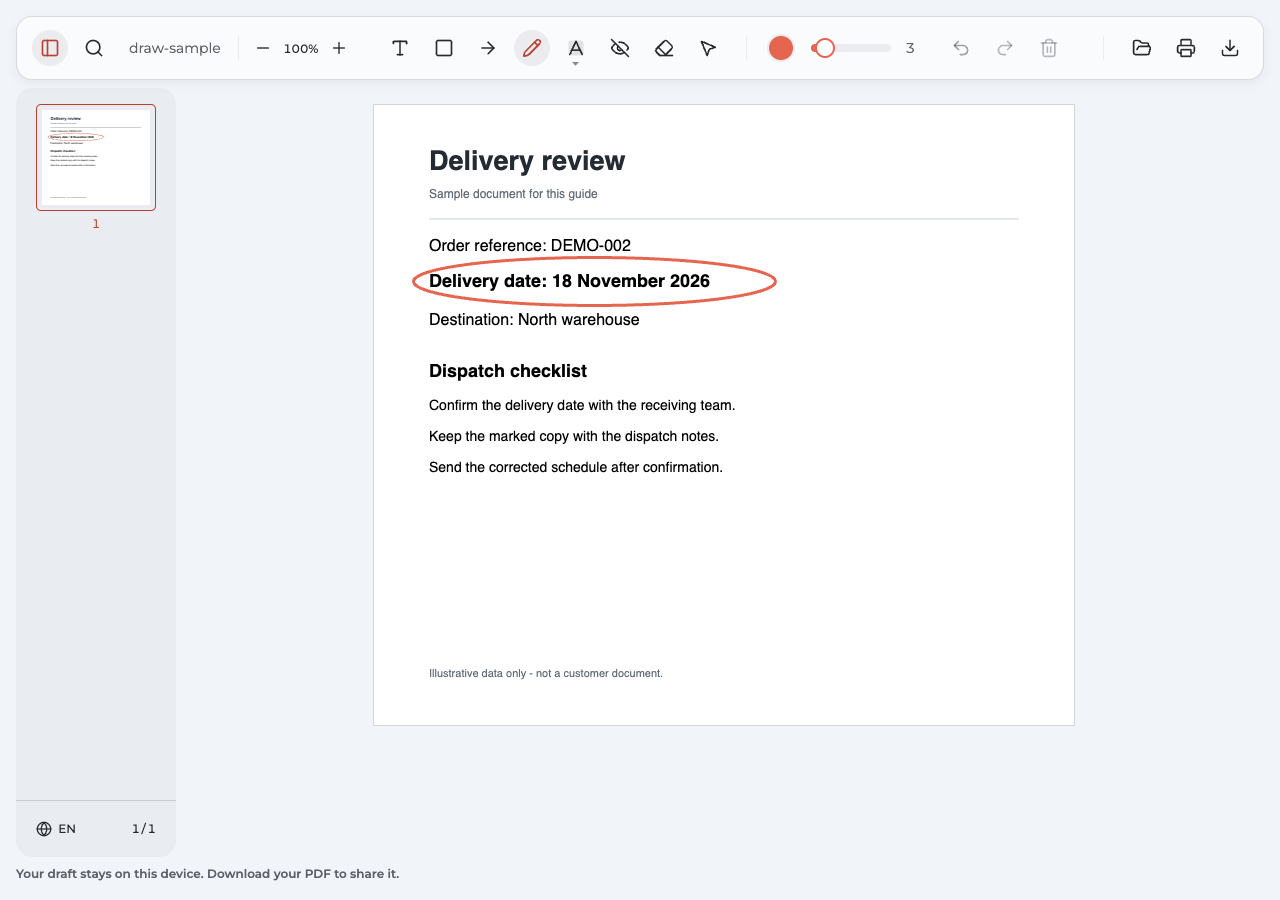
A circle shows where to look; add text beside it to explain what to do. Choose Text, click beside your mark, and type a specific request, such as “Confirm this date before dispatch.” Keep it close enough that the connection is obvious, without covering the original information.
Use the drawing tools to add shapes that need precise edges: choose Arrow or Rectangle instead of sketching them by hand. These shapes identify a location; the note supplies the instruction.
What you want to communicate Drawing tool How to keep it clear A quick circle or sketch Pen Draw around the detail, not across important PDF text. The exact item that needs attention Arrow Draw a pointer to the item and put the explanation nearby. A chart, table cell, or larger region Rectangle Draw a box around the PDF area without hiding its contents. The requested change Text Add text with a short, visible instruction beside the drawing. How do I move or adjust an existing drawing?
Choose Select (V) and click the actual ink line. Clicking the empty space inside a hand-drawn circle does not select its stroke. Once selected, drag the drawing to move it or use its corner handles to resize it on the PDF page. Annotation color and Line width adjust the selected stroke. The width slider changes thickness; it does not add pressure sensitivity. To remove the selected mark, use Delete selected annotation.
Export and check the marked copy
Choose Export to download a separate annotated PDF. Open that PDF in your PDF viewer and check the relevant page: can you see the drawing, read the original detail, and understand the note? If the file will be printed, check its print preview too.
Check the PDF viewer’s zoom before sending: a mark that looks clear at high magnification may be hard to read at normal page size. Send the checked PDF. When you draw another correction, export again to download a new copy and replace the older attachment; it will not update automatically.
Is the local draft the same as my downloaded file?
No. Local recovery helps you return to work in this browser profile, but it is not an independent backup or cloud sync. The downloaded PDF is the copy you can keep and send. Save it somewhere you can find, then reopen that exact PDF rather than relying on the editor’s current view.
What does the finished drawing look like?
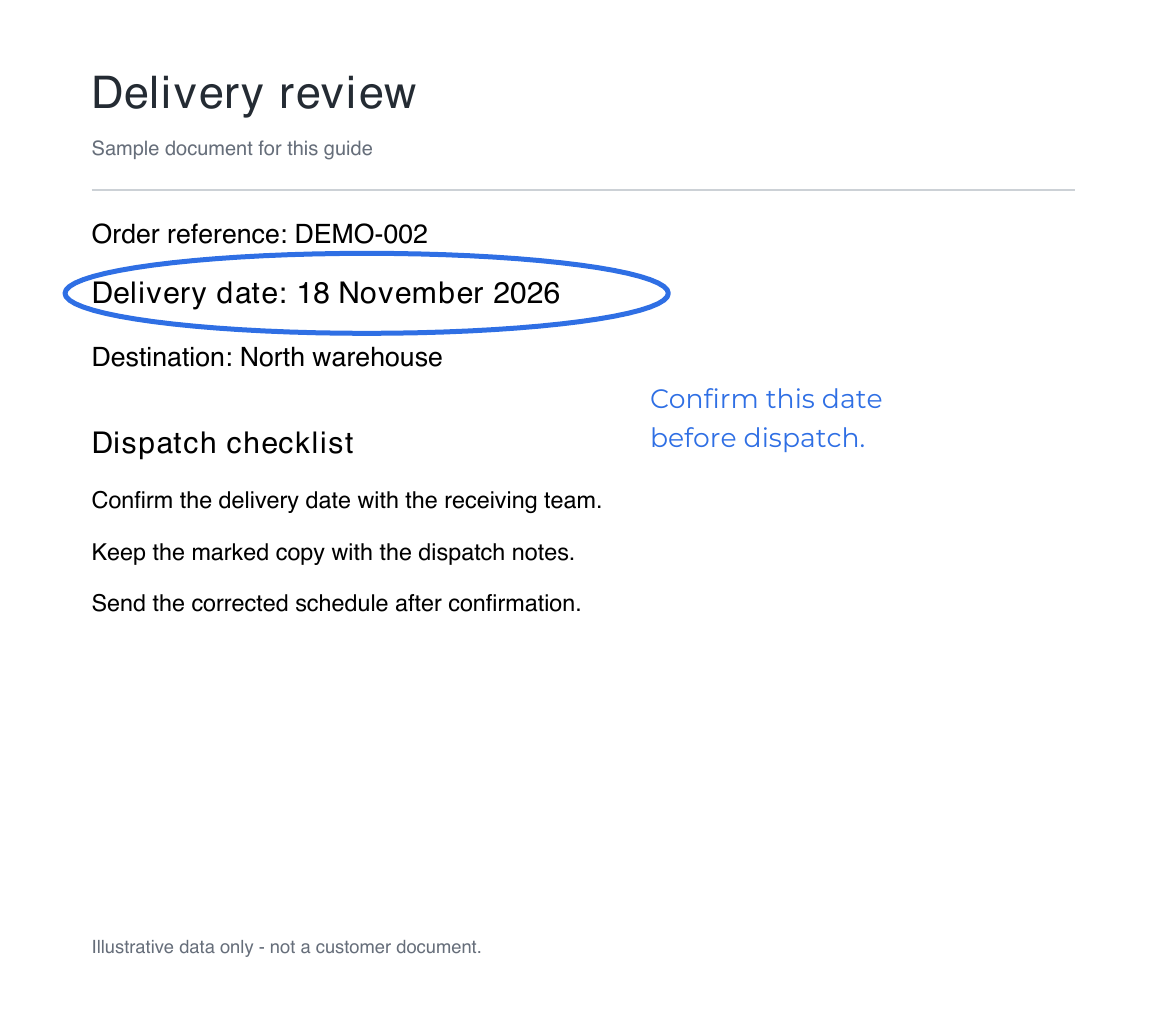
In this sample PDF delivery report, the blue circle identifies the date. The nearby note says, “Confirm this date before dispatch.” Together they give the recipient both a location and a concrete next action.
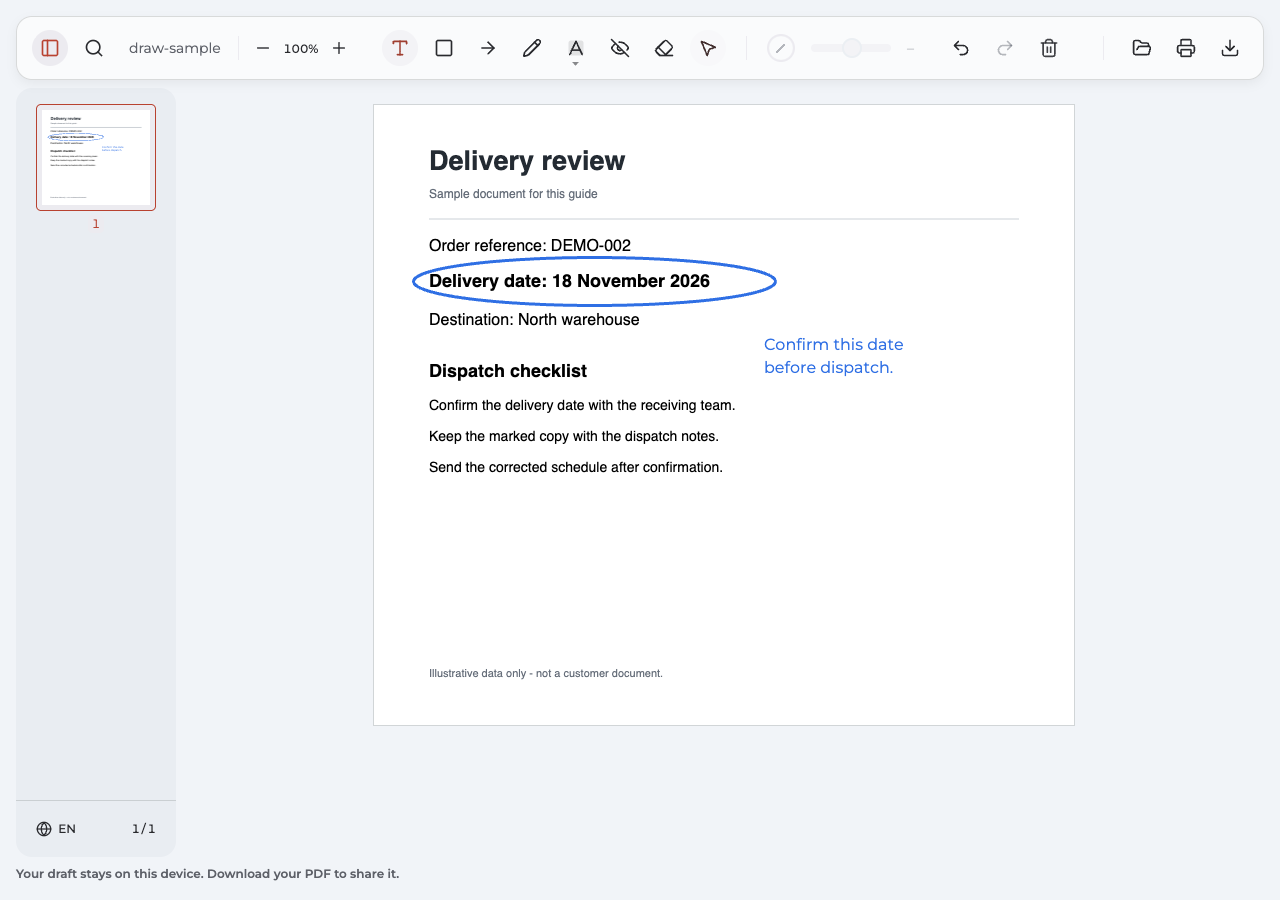
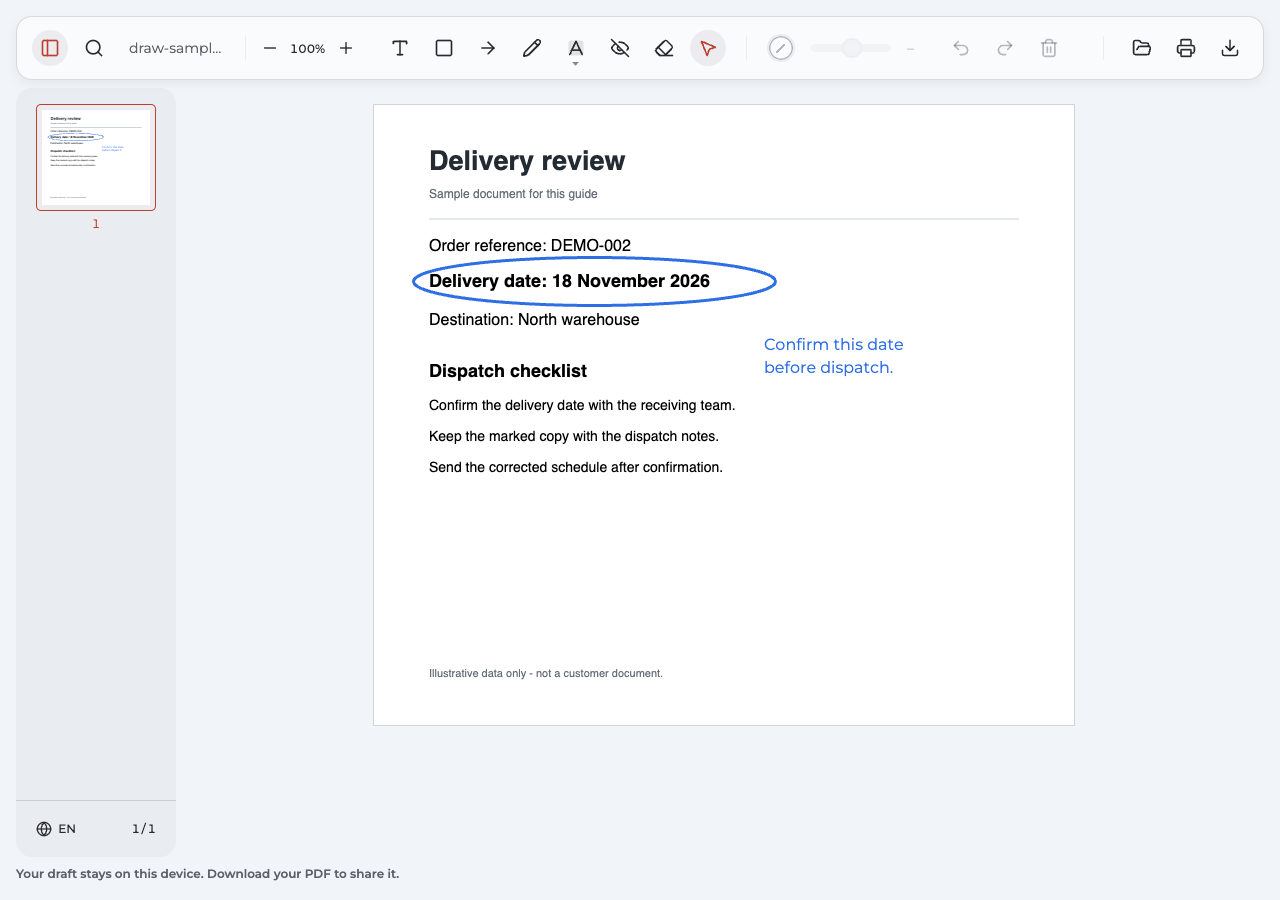
Download the marked sample PDF to inspect the result. The separate page preview below shows the same exported file rendered outside Annotate PDF. This is a sample document created for the guide.
What changed in this example?
We drew the circle, selected its ink line to change its color, and added the note beside the date. We then exported the PDF and reopened it. The original date remains readable; the added explanation asks for confirmation rather than pretending to replace the source text. Use the same pattern when you draw around a diagram, a table entry, or a passage in another PDF you want someone to review.
Why can’t I draw on my PDF?
Start with the symptom you see. Check which of the drawing tools is active and which PDF you opened before trying to draw again.
| Symptom | What to check | What to do and expect |
|---|---|---|
| Dragging does not leave a mark | Are you in a PDF preview or using Select? | Open the PDF in Annotate PDF and choose Pen, then draw on the page. A completed drag should leave a stroke. |
| The circle will not select | Did you click inside the empty center? | Switch to Select and click its ink line. Handles should appear around the selected drawing. |
| The drawing hides a number | Is the stroke too thick or too close? | Select it, reduce its thickness, or move it away. The original number should remain readable. |
| The PDF refuses editing | Does the message mention protection or unsupported content? | Ask for a suitable static, unencrypted PDF through an authorized process, then open that copy. |
| The recipient cannot see the marks | Did you send the original or an earlier download? | Export the latest version, reopen it, and replace the attachment with the checked PDF. |
Password protection, interactive forms, signatures, or certain annotations from other applications can prevent safe editing. Follow the specific message rather than assuming every failure has the same cause. Avoid closing or refreshing your work as the first troubleshooting step; obtain a usable exported copy when possible.
Can I draw with a tool I already have?
For simple shapes and notes, an existing app’s drawing tools may be enough. The table shows how to draw on a PDF with tools for Windows, Mac, and iPad.
| Your setup | Where to start | Useful distinction |
|---|---|---|
| Windows with Microsoft Edge | Open the PDF in Edge, use its inking controls, and save the marked copy. | Edge supports ink appearance and stroke-width settings. See Microsoft’s PDF reader guide. |
| Mac with Preview | Open the PDF, show the Markup toolbar, and choose Sketch. Save your changes. | Sketch handles freehand input; Draw appears only with a Force Touch trackpad. Shapes provide clean arrows and boxes. See Apple’s markup guide. |
| Adobe Acrobat | In the Quick action toolbar, choose Draw freehand, then Draw. | The same menu offers shapes; select a markup to resize or delete it. See Adobe’s drawing instructions. |
| iPhone or iPad with PDF Expert | Open the PDF, choose Annotate, and select Pen. | This is a separate mobile app; its iPad workflow also supports Apple Pencil. Follow PDF Expert’s device instructions, then inspect the saved or shared copy. |
Annotate PDF’s workflow above is for a desktop computer. Do not expect its extension to provide the mobile or stylus features described for another app.
Questions about drawing on a PDF
Can I draw on a PDF for free?
Preview on a Mac and Microsoft Edge offer drawing without buying a separate PDF editor. If you choose another tool, check its current terms before starting, including whether downloading requires an account or a paid plan. The device alternatives can help you choose an available route.
Can I draw on a scanned PDF?
Yes. You can draw visual marks over a supported scanned PDF without selectable text. This does not make the words searchable or editable. Annotate PDF does not perform OCR; use a separate OCR tool if you need a text layer for searching or text-based highlighting.
How do I erase a drawing after saving?
To erase your own saved drawing, reopen a supported PDF exported from Annotate PDF, select the restored annotation, and delete it. Export again to download the corrected copy. This depends on its annotation data remaining intact. It does not let you remove arbitrary ink from another app or a drawing flattened into the page. The previous session’s Undo history is not restored.
How do I draw a straight line or shapes?
For straight lines with an arrowhead, use Arrow; for a box, use Rectangle. A circle made with Pen remains a freehand stroke; there is no separate Circle or plain Line tool. If you need those exact shapes, choose an editor that provides them, such as the alternatives above.
Can drawing hide text or sign a document?
Drawing over words does not securely remove them. Use a dedicated redaction workflow for confidential content. Annotate PDF does not provide a signing workflow; use an appropriate signing tool when the document requires a signature.