

Here’s how to annotate a PDF: open it in an annotation tool, mark the relevant passage or location, add a clear note, and export a new copy. Reopen that download to check the feedback before you send it.
A PDF annotation is a mark or note added to a page to explain, question, or draw attention to its content. It lets you mark up a document without rewriting its original wording.
The most useful feedback answers two questions: Where is the issue, and what should happen next? A highlight identifies a passage; a short note such as “Confirm this date before dispatch” tells the recipient what response you need.
Which annotation tool should you use?
To mark up a page clearly, choose the smallest combination of annotation tools that explains the task. A single highlight may be enough for personal reading. Feedback for someone else often needs a few words explaining why the passage matters.
| Your purpose | Tool in Annotate PDF | What the reader sees |
|---|---|---|
| Identify particular words | Highlight (H) | Color following a selectable passage. |
| Add a request or explanation | Text (T) | A visible note on the page. |
| Point from a note to a precise location | Arrow (A) | An arrowhead indicating the date, figure, or other target. |
| Frame an area, chart, or group of details | Rectangle (R) | A border around the relevant region. |
| Add a quick checkmark or freehand drawing | Pen (P) | Your drawn line over the page. |
These markup tools add visible feedback. Annotate PDF’s typed notes are separate page objects, not replacements for source text. They also differ from sticky notes that open in a pop-up or comments with reply threads. If your review needs a conversation, assignments, or shared approvals, choose an application with those features.
The instructions below use the desktop Chrome extension. Your PDF files are processed on your computer rather than uploaded to an editing server. The extension edits its own annotations, including those restored from supported exports with their annotation data intact; it does not promise to edit every mark created in another app.
How can you annotate in Chrome?
Start with a PDF document you are allowed to edit, and keep the original PDF file as a backup. This method uses the installed extension, not Chrome’s built-in PDF viewer.
Open the file and find the relevant content
Open your PDF file in Annotate PDF. Go to the page you want to mark up and choose a zoom level where the passage and space for a note are visible together.
If you want to highlight text, check that you can select text on the page. A scanned page may look readable while containing only an image. You can still mark a supported scan with a positioned arrow, rectangle, Pen stroke, or Text note; that does not make its words searchable or editable.
Mark the exact passage or region
Choose Highlight (H) and drag across the selectable words that need attention. The colored mark should follow the intended passage. Highlight opacity is fixed in Annotate PDF, so there is no opacity slider to adjust.
For a location that is easier to point at, choose Arrow (A). Drag from the tail toward the target and release where the arrowhead should land. Use Rectangle (R) to frame a region, or Pen (P) for a freehand mark. One clear cue is usually enough; avoid covering the page with overlapping shapes.
How do I correct an unwanted mark?
Choose Select (V) and click your annotation. For arrows and Pen marks, aim at the actual line; for a rectangle, click its border. Use Delete selected annotation to remove the selected mark, or Undo to reverse a recent action. If text selection produced an unwanted highlight, delete that highlight and draw it again over the correct words. Do not assume that dragging an endpoint will redefine its text range.
Eraser (E) removes a whole own annotation, not the page pixels underneath. Its Clear all action removes all own annotations across the document’s pages, including notes and shapes, so use individual deletion when other feedback should remain.
Add a short, actionable note
Choose Text (T), click clear space beside the marked area, and add text that explains the requested action. Prefer “Confirm this date before dispatch” to “Check this,” which leaves the recipient guessing.
Keep the note close enough to its target to be understood. If the connection is unclear, add an arrow from the note toward the passage. The arrow and text remain separate objects; moving one does not automatically reposition the other.
To correct your own note, select it and edit or move it. Adjust Font size until it is readable at the page’s normal viewing size. A white note background can help over a busy area, but place the text box where it will not conceal important source content.
What should I write when the notes are only for me?
Use text notes to preserve the reason you marked something. Beside a highlighted instruction, you might write “Use this step before the monthly report.” That gives you a useful reminder when you return to the page. Annotate PDF keeps the visible note in the exported document; it does not provide a research library, handwriting recognition, or a separate study-summary workflow.
Make the feedback readable
Check the page as a recipient would. Is the target clear? Does the note ask for a specific action? Can you still read the words underneath and around the marks?
With Select active, drag your arrow’s shaft to move it. Endpoint handles adjust its length and direction; the middle handle bends it. Move a rectangle by its border or a Pen mark by its stroke. Keep arrows and shapes beside important words when possible.
Why did a setting affect the next mark instead of this one?
Settings apply to a selected own annotation; without a selection, they set the next tool’s defaults. Select the existing mark before changing its color or width. For Arrow, Rectangle, and Pen, use Line width to adjust line thickness with the slider or number field. For a selected Text note, use Font size. Check the result on the page rather than relying only on the number shown in the control.
Export and reopen the finished copy
To save your PDF with the feedback, choose Export. Open the newly downloaded PDF file and inspect the annotated page. Confirm that the mark identifies the right location, the full note is present, and the page remains readable.
Attach or share this checked PDF file. Earlier downloads and email attachments do not update when you make changes in the editor. A locally recoverable draft is useful for continuing work, but it is not the copy your recipient receives.
What should the finished PDF look like?
Our example combines a yellow highlight on a delivery date, a blue arrow pointing toward it, and the note “Confirm this date before dispatch.” Each part has a purpose: identify the passage, connect it to the explanation, and make the next action clear.
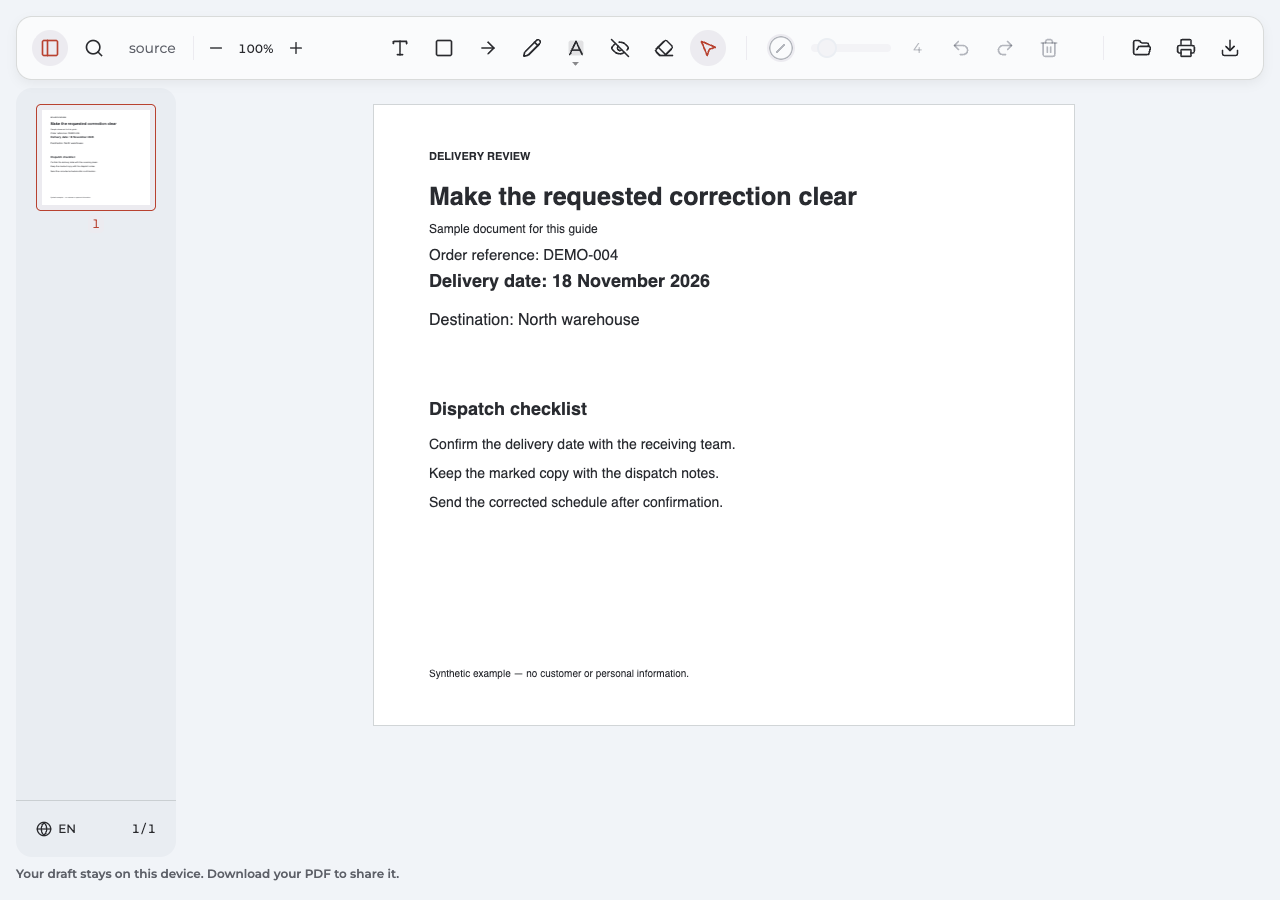
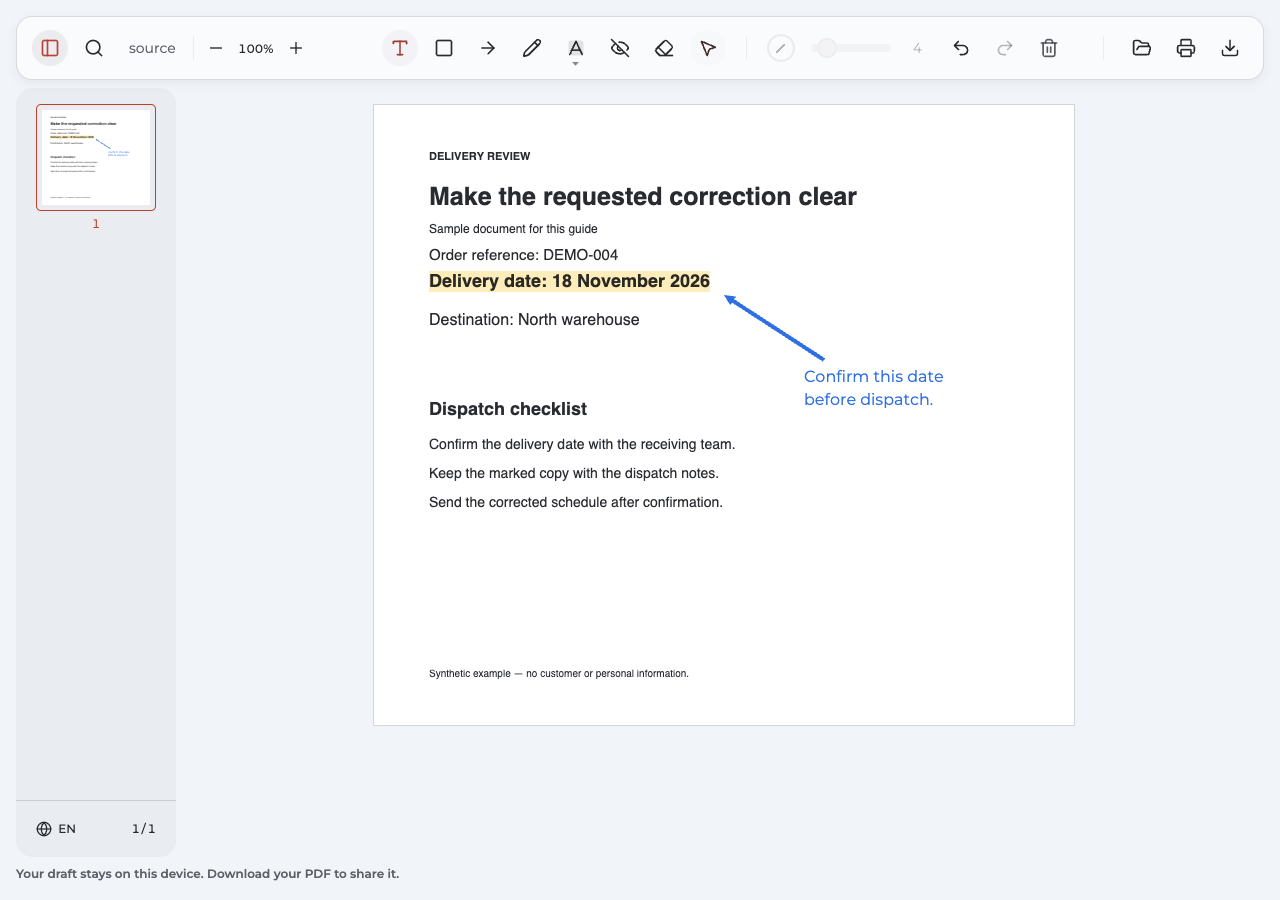
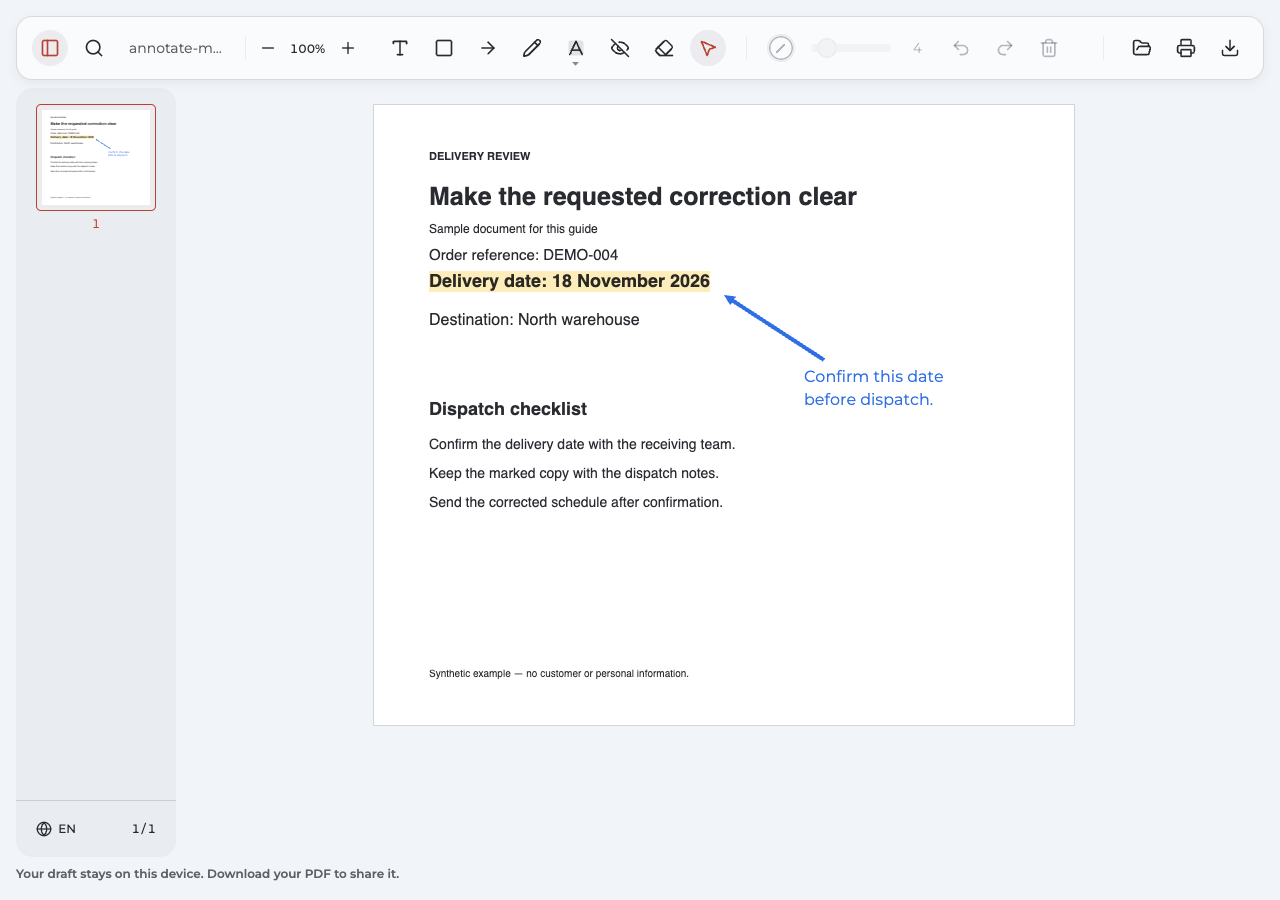
Compare the original PDF with the annotated PDF. Open the second file to see what travels with the document, outside the editing view.
What should I check in the example?
The date is still readable beneath the highlight, the arrow points toward it, and the complete request appears beside it. All 11 lines of source text remain in this example’s exported file, along with the added note. That result verifies this example; use the same visual check on your own output rather than assuming every document will behave identically.
How to annotate a PDF when something goes wrong
A problem can come from the active tool, the document’s content, or the version of the file you opened. Use the symptom to choose the next check.
| Problem | What to check and do | Expected result |
|---|---|---|
| You cannot select the words | The page may be a scan without a usable text layer. Use a positioned mark for visual feedback, or use a separate OCR tool if searchable text is required. | A supported page can receive a visible mark without promising text highlighting or OCR. |
| A click creates another mark instead of moving one | Switch to Select and click the existing mark’s ink or border. | Your own annotation becomes selected for correction. |
| An old mark will not move or delete | Check which app created it. Try its originating editor if it is a foreign annotation; flattened artwork belongs to the page itself. | A compatible tool may edit the annotation. Annotate PDF does not turn arbitrary page artwork into its own editable objects. |
| A note or mark is missing from the shared file | Export again, open the latest download, and attach that copy. | You share the version you actually checked. |
| The editor reports protection or unsupported content | Follow the message and obtain an authorized, compatible copy from the sender. | Continue when a suitable file is available, without bypassing restrictions. |
What if you use a Mac, Acrobat, or a phone?
To mark up a document, use the annotation tools in an application you already have when they fit the task. These are separate workflows with their own saving and commenting behavior.
Preview on Mac
Open the PDF in Preview and show the Markup toolbar. Choose the appropriate text, highlight, note, or shape control. Apple’s Preview annotation guide explains its markup tools and handles.
Apple says Save or Export retains editable annotations in Preview, while Print → Save as PDF flattens them. Choose the saving route according to whether you need to revise those marks later; this distinction describes Preview, not every PDF application.
Comments in Acrobat
To add comments associated with selected content, Adobe’s instructions use Select text, then the floating Add a comment action. Enter the comment and choose Post. See Adobe’s guide to comments on selected text or images.
This comment workflow differs from placing a visible Text annotation directly on a page. Choose the form that suits how the recipient will review the document.
iPhone and iPad
For a mobile workflow, PDF Expert’s iPhone and iPad guide starts with Annotate on the toolbar. Choose Highlight and drag over text, or choose Text and tap where the visible note should go. Its Note option creates a pop-up note instead.
Annotate PDF’s instructions in this article are for desktop Chrome; they are not instructions for an Annotate PDF phone app.
Questions about annotating PDFs
Can I annotate a PDF for free?
Check the tools included in your existing reader first. Preview on Mac already provides markup controls. When considering another app or website, check its current editing and download terms before starting: access to an upload screen alone does not establish that the finished PDF is free to export.
Does an annotation change the original text?
The visible marks described here add feedback over the page rather than rewriting its wording. To correct an original sentence, change the source document or use an editor that supports source-text editing. Covering words with a note is not secure removal of the underlying content.
Can I edit my marks after reopening the PDF?
A supported Annotate PDF export with intact annotation data restores its own marks for editing. It does not restore the previous session’s Undo history. Keep the original PDF file and a recent export, and do not assume that annotations from other apps or flattened page content will be editable in the same way.
How should I share or print the comments?
Share the actual exported PDF file after opening it to check the feedback. For printing, inspect the print preview and a sample page if the output matters. Visible page notes and pop-up comments can have different printing behavior, so do not assume that every viewer prints every comment type automatically.
Can I annotate confidential PDFs?
Annotate PDF processes documents locally on your computer rather than uploading them to an editing server. You still decide where to store and send the exported file, and your workplace may set rules for documents and installed extensions. Local processing describes this workflow; it is not a blanket security guarantee for every file or sharing method.