

Here’s how to add arrows to PDF files: open the document, choose the Arrow tool, and drag from the arrow’s tail toward the spot you want to point out. Adjust the mark, export a new copy, and open that download to check the result.
An arrow annotation is a movable shape placed over a PDF page to direct attention to a location without changing the source wording. Pair it with a short note when the recipient also needs to know what to do.
What kind of arrow do you need?
Use an arrow shape when you want to point to a date, a chart value, a missing detail, or another place on the page. You can position the head at that location and keep the explanation in nearby empty space.
A typed arrow character, such as →, belongs inside a line of text. It is useful in a sentence, but it does not work like a separate annotation with movable endpoints. If your goal is visual feedback, choose a PDF editor that lets you add shapes directly to the page.
How do you add arrows in Annotate PDF?
This workflow uses the Annotate PDF extension in desktop Chrome. It processes your PDF document locally without uploading it to a server. It can edit its own annotations, including those restored from supported exports with their annotation data intact; existing arrows from other apps may not be editable.
Open the PDF and find the target
Keep the original PDF file as a backup. Open it in Annotate PDF, go to the relevant page, and choose a zoom level where you can see both the target and space for your note.
Before you draw an arrow, decide where its head should land and leave room beside the tail for an explanation.
Draw from the tail toward the target
Choose Arrow (A). Set a color and use the Line width slider if you want to adjust the next mark’s appearance. Click and drag from the tail’s starting point toward the date, number, or region you want to identify. Release where the arrowhead should land.
You should see the completed arrow pointing toward the target. Keep the head beside important words rather than covering them, and leave the line clear of unrelated passages.
Why am I drawing another arrow instead of moving the first one?
The Arrow tool remains ready to create another mark. To change the one you already drew, switch to Select (V) and click its line. Clicking empty space inside the arrow’s surrounding area may not select it; aim at the shaft itself.
Adjust the arrow and explain the action
Choose Select (V) and click the arrow’s shaft. Drag the shaft to move the whole mark, or drag an endpoint handle to adjust its length and direction. The head should identify one clear target.
Choose Text (T) to place a short text box nearby. Write the requested action, such as “Confirm this date before dispatch.” The text and arrow are separate objects, so moving one does not automatically move the other. Check their relationship after repositioning either one.
How do I undo or delete a misplaced arrow?
Use Undo to reverse a recent action in the current editing session. To remove a particular arrow, choose Select, click its line, and use the toolbar button labeled Delete selected annotation. Undo can restore that deletion while the session remains open.
Export and inspect the downloaded copy
To save your PDF with the new marks, choose Export. Open the newly downloaded file and check the arrowhead’s location, the note’s wording, and the readability of the underlying page.
Send this checked copy. An earlier attachment does not update when you add arrows in the editor, and a locally recoverable draft is not the file your recipient receives.
How can you change an arrow’s direction, size, or color?
Select the mark before changing its arrow properties. Use a color that stands out against the page, with enough line thickness to remain visible at normal reading size.
| What you want to change | Control to use | What you should see |
|---|---|---|
| Move the whole arrow | Select it, then drag the shaft. | Both endpoints move together. |
| Change length or direction | Drag either endpoint handle. | One end moves while the other stays in place. |
| Bend the arrow around content | Drag the middle handle. | The line curves between its endpoints. |
| Change the color | Select the arrow and use the color control. | The selected mark takes the new color. |
| Make the line heavier or lighter | Adjust the Line width slider. | The selected line becomes wider or narrower. |
Can I make a curved arrow?
Yes. A selected arrow has a middle handle that you can drag to bend the line. This can help you route a mark around nearby words. Use a straight line when it already points clearly to the target, and check that a bend does not make the destination ambiguous. The downloadable example below demonstrates a straight arrow with a separate note.
What does the exported arrow look like?
Our sample points to a delivery date and adds the request “Confirm this date before dispatch.” The head identifies the date; the note tells the recipient what response is needed.
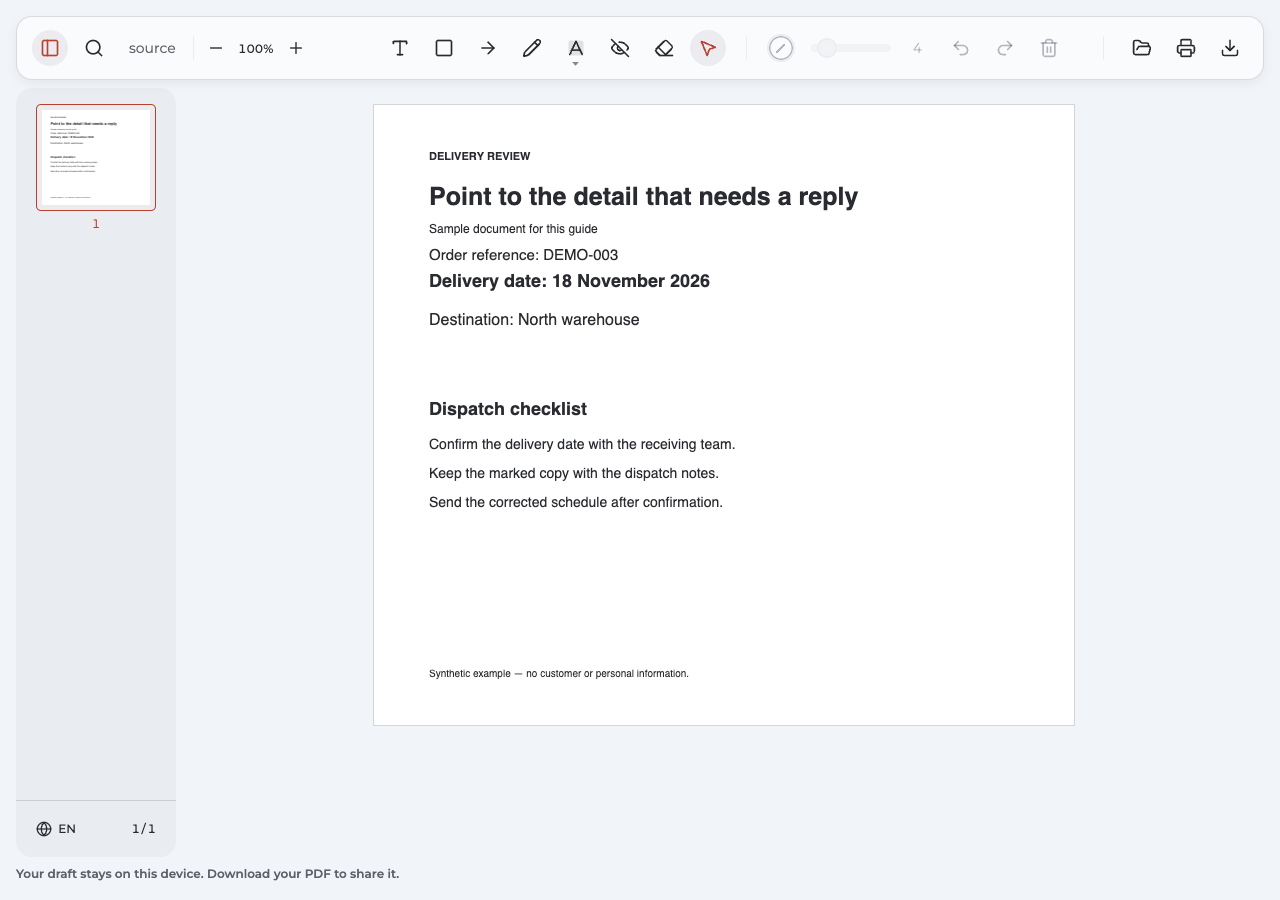
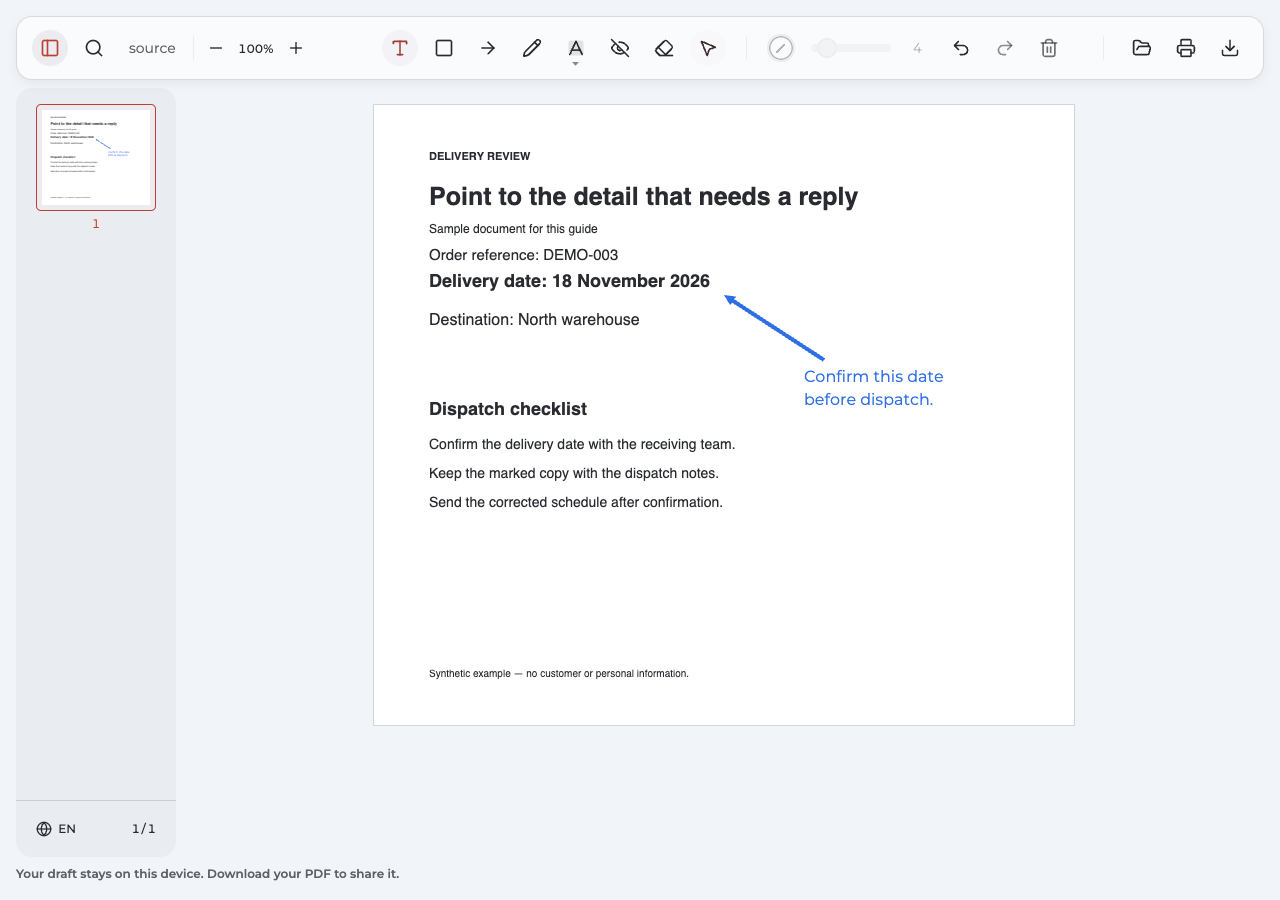
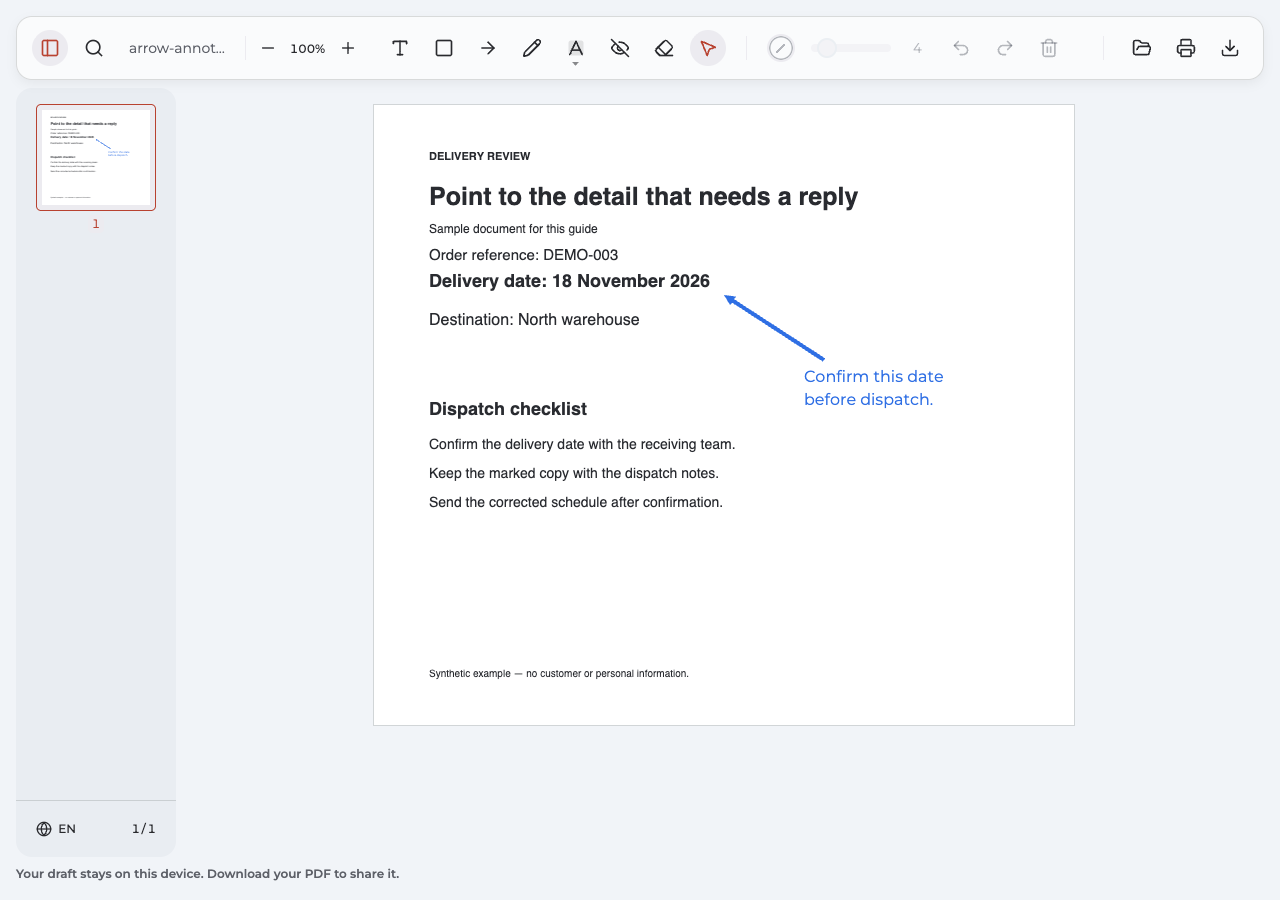
Compare the original PDF with the exported PDF containing the arrow and note.
What was checked in this example?
We reopened the actual export and checked the mark’s position, color, width, and note. An independent check also found all 11 original nonempty text lines in the output, along with the added note. This verifies the sample; inspect your own downloaded PDF document before sending it, especially where an arrow passes near important text.
How to add arrows to PDF files when something goes wrong
Check the active tool and click the arrow’s line before trying to move it.
| Problem | What to do | Expected result |
|---|---|---|
| The head points the wrong way | Select the arrow and move an endpoint, or Undo and redraw from tail to target. | The head lands at the intended location. |
| Clicking creates a new arrow | Switch from the Arrow tool to Select, then click the shaft. | The existing mark becomes selected. |
| An existing arrow will not select | Check whether you created it in Annotate PDF. For a foreign mark, try its originating editor. | A compatible editor may recognize the annotation; flattened page artwork is not an editable own arrow. |
| The arrow covers words | Move the shaft, adjust an endpoint, or use the middle handle to bend the line. | The target remains clear and the text stays readable. |
| The editor reports a file limitation | Follow the message and obtain an authorized, compatible copy from the sender. | Continue with a file the editor supports. |
| The recipient cannot see the new mark | Export again and open that new download before attaching it. | You send the checked, marked version rather than an earlier file. |
Can you use an editor you already have?
If your current PDF editor supports arrows, you may not need another tool. These alternatives use their own controls; their advanced options are not additional Annotate PDF settings.
Acrobat
Adobe’s instructions place Arrow in the quick-action toolbar’s Draw freehand menu. After creating the mark, select it to adjust it with handles; Add a comment adds an explanation. See Adobe’s shapes and drawing tools guide for the current workflow.
Preview on Mac
Open the Markup toolbar and use the Shapes tool to choose an arrow. Preview also provides style and border-color controls. Apple’s annotation guide explains the handles and settings.
Apple distinguishes saving or exporting annotations from flattening them through Print → Save as PDF. Use Save or Export when you want to retain editable annotations in Preview; do not assume a printed-to-PDF copy will preserve that editability.
Advanced arrow styles
If you need a dashed line style, special head-and-tail designs, or angle snapping, look for those exact features in your chosen editor. The PDF Annotator manual documents these options for PDF Annotator. This Annotate PDF workflow covers its verified color, width, endpoint, and bend controls.
Questions about PDF arrows
Can I add an arrow to a scanned page?
A positioned arrow does not require selectable text, so a supported scanned page can accept that kind of annotation. It does not make the scan searchable or change its words, and Annotate PDF does not provide OCR. The demonstration here uses a digital-text sample; file restrictions can still limit editing.
Can I edit the arrows after downloading the PDF?
A supported Annotate PDF export with intact annotation data can restore its own arrows and notes for editing. Reopening does not restore the previous session’s Undo history. Keep your original PDF document and latest export, and do not assume that foreign annotations or flattened artwork will become editable.
How do I add an arrow with text beside it?
Place a short Text note in clear space, then point the arrow at the relevant location. State an action such as “Check this total” rather than leaving the recipient to infer the problem. In Annotate PDF, the note and arrow remain separate objects, without an automatic connector or group.
Can I add arrows online or for free?
Check the annotation features in your existing reader first. For an online service, confirm its current editing, download, and document-upload conditions before starting. Annotate PDF uses an installed desktop Chrome extension; it is separate from Chrome’s built-in PDF viewer and is not a mobile app.
Should I use an arrow symbol instead of a shape?
Use a symbol when the arrow belongs within a sentence or sequence. Use a movable annotation when its head needs to point at an independent location on the PDF document.