

If you can't select text in PDF files, first check your reader’s text-selection mode. Image-only pages need OCR for actual word selection; copying restrictions need authorized access. Test another page or reader before deciding that the file needs conversion.
A text layer is the information in a PDF that identifies characters as words rather than just pictures. A page can look perfectly readable while lacking that information.
Selection, copying, highlighting, and editing are different tasks. You might be able to select a passage but not copy it. A temporary blue selection is not a saved annotation, and selecting a comment does not select the source words beneath it. Start with the result you actually need.
Why won't this PDF let you select words?
Use what happens on the page to narrow the cause. One failed search or an unselectable region does not, by itself, prove that the whole document is a scan.
| What happens | Check and next step | What the result tells you |
|---|---|---|
| Dragging moves the whole page | Check the active tool. Choose the reader’s text-selection mode if available, then try to select text. | A pan gesture is not an attempt to select words. |
| Individual words cannot be selected anywhere on a page | Compare another page and a known text-based file. Check whether the source is a scanned PDF. | An image-only page needs recognition before its pictured words can be selected. |
| Words select, but copying fails | Inspect the file’s permissions and ask the sender for authorized access or a suitable copy. | Selection and permission to extract the text are separate conditions. |
| The wrong column selects, or pasted text is garbled | Try a smaller region and compare it with the page; ask for a fresh source export if necessary. | Reading order or character mapping may be faulty even when text exists. |
| The same file works in another viewer | Open a downloaded copy in the working reader rather than relying on an embedded preview. | The problem may be the viewer or its current mode, not the document. |
| Only certain pages or regions fail | Check each affected area rather than treating the whole file alike. | A document can mix genuine text, scanned pages, and pictured labels. |
What should you check before using OCR?
Check the reader’s selection tool
Download a local copy if you are working in an email attachment preview or a web page. Open that PDF file in a reader with source-text selection, then try a short passage.
In Preview on Mac, choose Tools → Text Selection, or use Text Selection in the Markup toolbar. Apple documents both routes in its selection troubleshooting guide.
Names differ between applications. In Annotate PDF, Select (V) selects the extension’s own annotations and pans a bare page. It is not a generic tool for copying the document’s original words. There is no separate Hand toolbar button to switch off in that build.
Does the Highlight tool prove that copying is available?
No. A tool may use existing text information to highlight text without providing a standalone copying workflow. Annotate PDF’s Highlight tool creates a saved mark over selectable words; Select works on annotations. To extract wording, use a reader with an explicit source-text selection and copy command.
Compare another page and another reader
Try the same PDF document in another capable PDF reader. Also open a known text-based document in the viewer that failed. These two checks help separate a file-specific problem from a tool or rendering problem.
If selection works, copy and paste a short, non-sensitive sample into a plain-text editor. Compare the result with the page, including dates, punctuation, and the order of lines. Successful selection alone does not establish that extraction is accurate.
Search for a distinctive word as an additional check. A successful search suggests that the viewer has found some text, but a failed search can have several causes. It is not enough evidence to declare the page image based.
Check permissions and reading order
If words select but copying is unavailable, inspect the PDF’s security settings. Apple’s Preview route is Tools → Show Inspector → Encryption Inspector. If the file is password protected, use the authorized password or ask the sender for a version you are permitted to use. Do not treat a restriction as a formatting error to bypass.
If the output mixes columns or replaces letters with odd characters, the page may contain text with unsuitable reading order or character mappings. Try a smaller passage. If it remains wrong in more than one reader, request a fresh PDF export or the original source document.
How can I select one column in Bluebeam Revu?
For Revu 20 or 21, Bluebeam documents Edit → PDF Content → Select Text, with Shift+T as the shortcut. Holding Ctrl while selecting lets you draw a rectangular selection for a column. This is a Revu-specific route; it is not an Annotate PDF shortcut. See Bluebeam’s selection troubleshooting instructions.
How do you make a scanned page selectable?
Optical character recognition (OCR) identifies pictured characters and adds text information that software can select or search. It is the relevant next step when you need the words from a scanned PDF, rather than merely a visible mark on the page.
Keep the original file before processing it. Use an OCR-capable application that you are allowed to use with the document; check your organization’s rules before uploading confidential content to a service. Annotate PDF does not provide OCR.
Run recognition on the relevant pages
Adobe’s documented Acrobat route is:
- Open the document and choose All tools → Scan & OCR.
- Choose In this file.
- Set the page range and the language of the source text.
- Choose Recognize Text.
- Save the processed result as a separate copy.
These steps come from Adobe’s recognition guide. Check the features available in your installed version; this article does not assume a particular subscription or trial.
Verify the result before relying on it
Open the processed copy and select a passage on an affected page. Check whether you can copy text accurately and whether search finds a distinctive word. Review representative pages, not just the first one.
Compare names, dates, amounts, and similar-looking characters with the original image. An OCR result can appear plausible while getting a digit or letter wrong. If the recognition is poor, ask for a clearer scan or a PDF exported from the original document rather than repeatedly converting the same low-quality image.
What if the document already contains some searchable words?
A PDF can combine a digital cover page with scanned attachments, or contain recognition on only part of a page. Existing searchable text does not establish that every region has usable words. Choose the affected page range where your OCR tool supports it, preserve the original, and verify both the processed pages and any existing text you need to keep.
What if you only need to mark the problem for someone?
You do not always need to recover the words. If your task is to show a colleague which date needs checking, a border, arrow, and visible note may be enough.
Annotate PDF can add that visual feedback to a supported image-only page. It does not make the pictured source words selectable or copyable. This optional route uses an installed desktop Chrome extension and processes the document locally on your computer.
Open the file and check the page
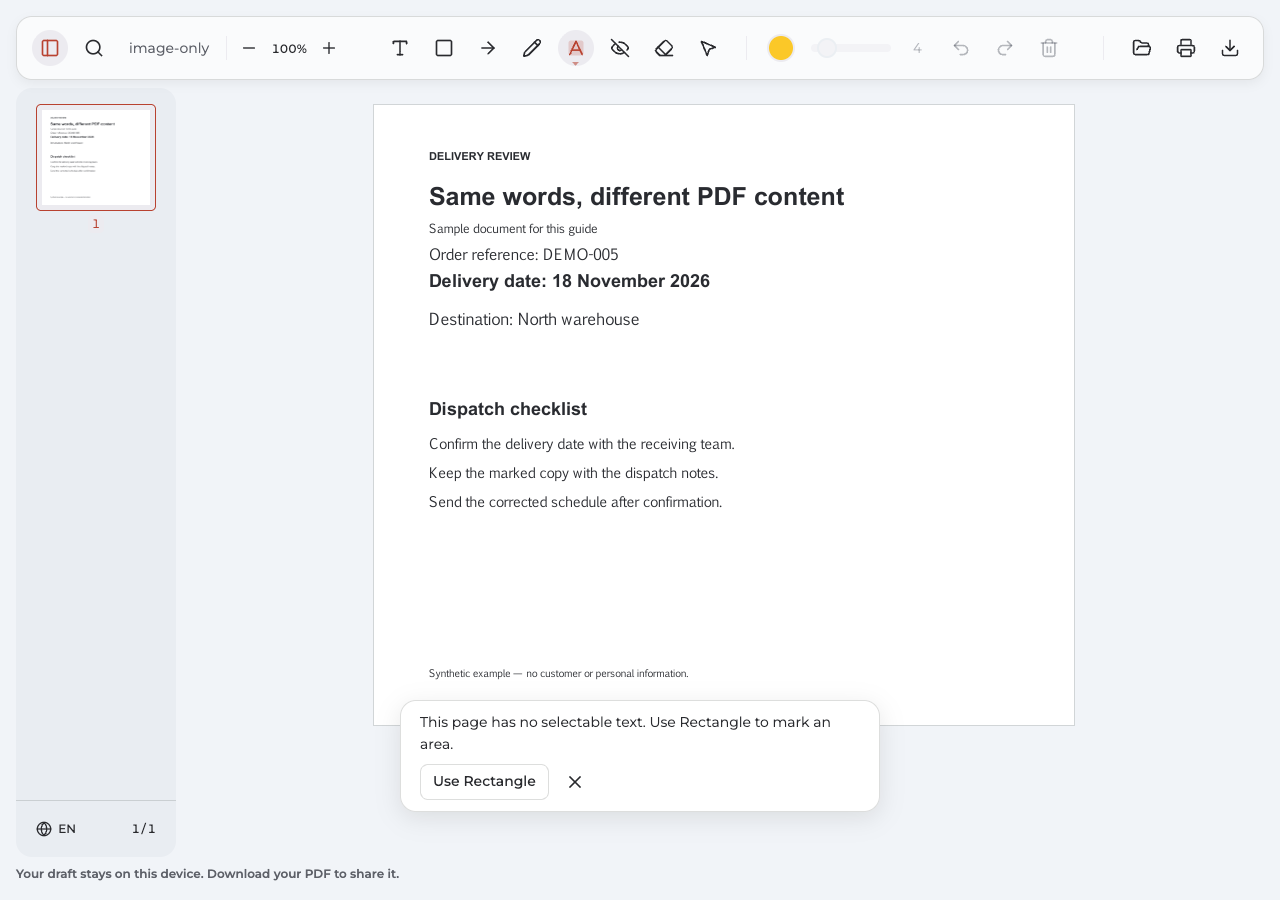
Open the document in Annotate PDF. If you try to highlight text on an image-only page, the editor displays: “This page has no selectable text. Use Rectangle to mark an area.”
That message describes the page’s missing word information. Choosing Select will not convert the picture into words.
Mark the region and explain the request
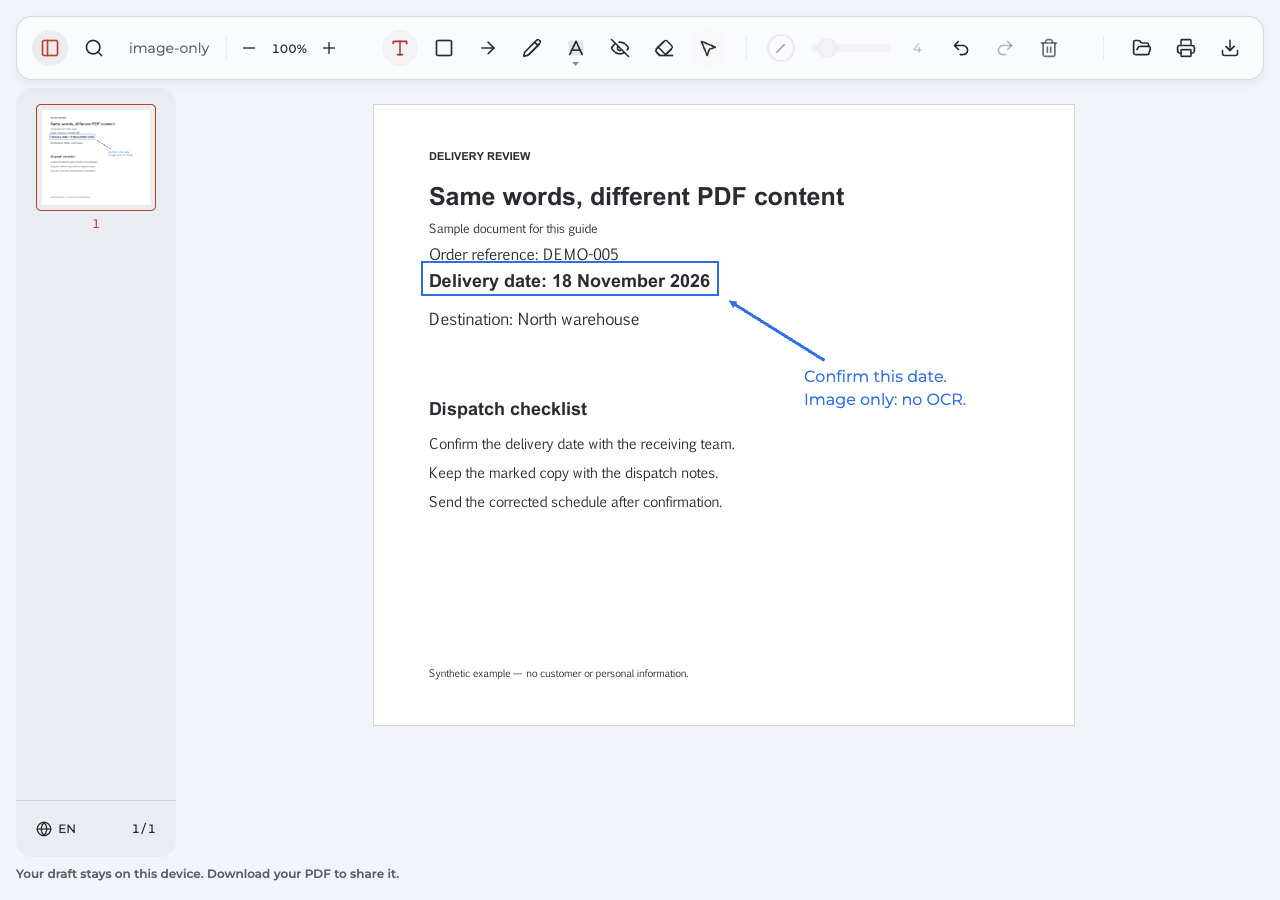
Choose Use Rectangle, then draw a border around the relevant area. Add an Arrow (A) if the location needs a clearer pointer, and use Text (T) for a short visible request.
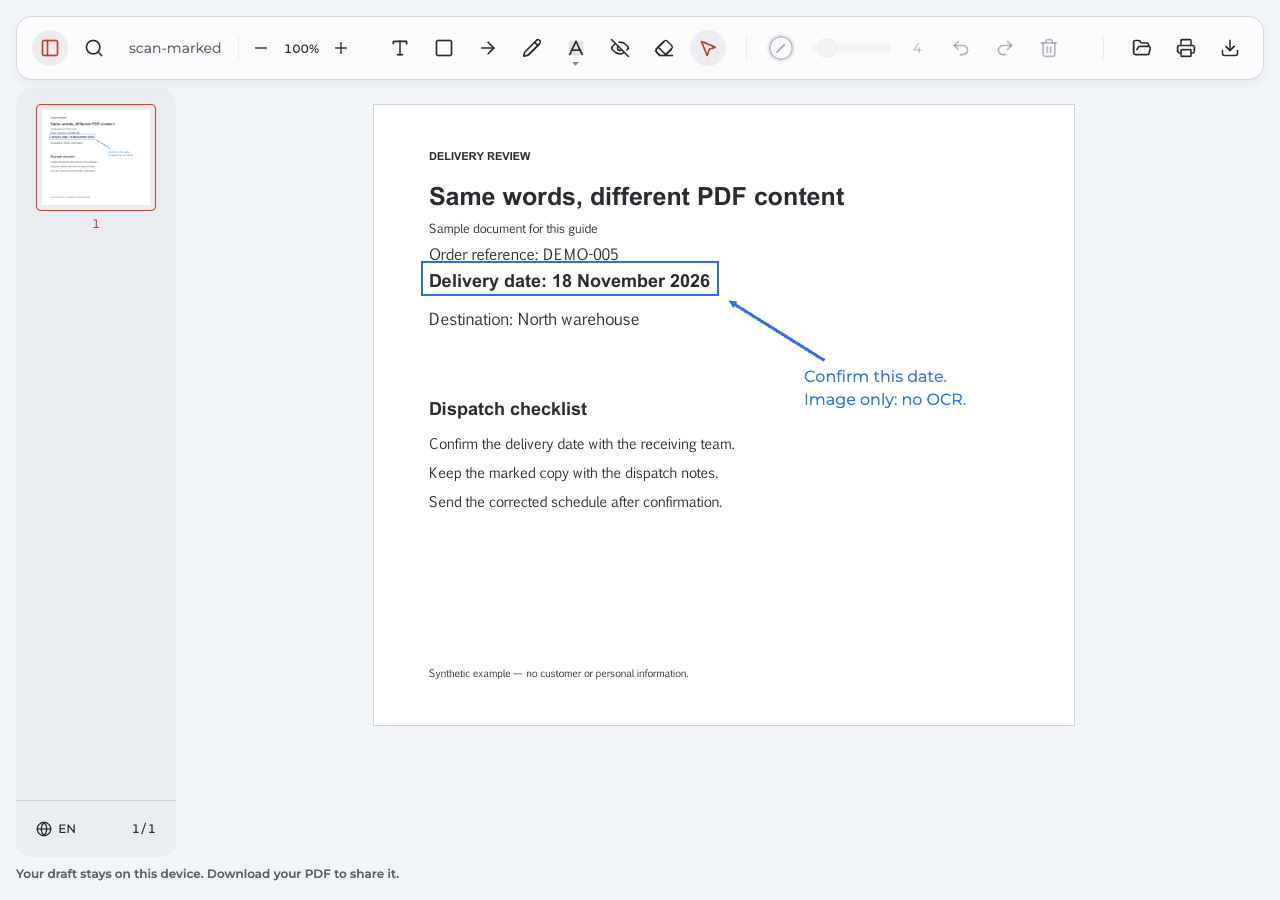
Our example says, “Confirm this date. Image only: no OCR.” The border locates the date and the note tells the recipient what to do. Leave the pictured words readable rather than covering them with the new annotation.
How do I correct my rectangle, arrow, or note?
Choose Select (V) and select your own annotation. Move it, or use Delete selected annotation to remove it. Undo can reverse a recent change in the current session. A supported Annotate PDF export with intact annotation data can restore its own marks for later editing, but it does not restore the previous session’s Undo history. This does not make foreign comments or the page’s original picture editable.
Export and inspect the actual download
Choose Export, then open the newly downloaded PDF file. Check that the border identifies the intended region, the note is complete, and the underlying date remains legible. Send that checked copy rather than an older attachment.
The new typed note may be extractable even though the original pictured words are not. Adding a text annotation is not the same as running recognition on the source page.
Compare the real examples
The two original samples below look alike, but only one contains genuine source words. The marked version demonstrates visual feedback on the image-only sample; it is not an OCR before-and-after example.
- Digital PDF with a text layer
- Same-looking image-only PDF
- Image-only PDF with exported visual feedback
What changed in the marked sample?
The exported scan contains the added note, “Confirm this date. Image only: no OCR.” Its original page still consists of an image. The matching digital original contains actual words, including the date. This difference explains why a page can look readable, accept visible feedback, and still not let you extract its source text.
Still can't select text in PDF?
Choose the next step according to the remaining symptom: a reader setting for a tool problem, authorized access for a permission problem, OCR for pictured words, or a clearer source when the existing text is unreliable.
Is selecting text the same as leaving a highlight?
No. A temporary selection identifies words for a reader action, while a highlight is a saved annotation. To highlight text, use the application’s markup tool; to copy text, use its source-word selection and copying commands. If the words exist only in an image, a colored shape over them does not create those words.
Why does search work while the copied result is wrong?
Search may find recognized or encoded text even when its character mapping or reading order is poor. Compare a short extracted passage with the original, try a smaller region, and check the same file in another PDF viewer. If the error persists, obtain a better source or review a new recognition result before relying on it.
Why can I highlight text on some pages but not others?
That page may have a different source from the rest of the document. Check it independently: a digital page can sit beside a scanned attachment. If you need to highlight text as words, verify or add the affected page’s text information; for a location-only comment, use a visual annotation instead.
Will saving or printing to PDF fix selection?
Ordinary saving or Print to PDF is not an OCR guarantee. It may preserve the problem, and an image-only result still has no source words to recover through selection. Use the appropriate recognition or source-export route, then test the new file rather than assuming that a new filename means the text was repaired.
Why can I copy my new note but not the scanned words?
Your note was created as text, while the original page remains a picture. Both can exist in the same PDF document. To recover the pictured wording, use a separate OCR workflow and check its accuracy. If visual feedback meets your task, send the inspected marked copy with that limitation understood.