

To add a date to a PDF, open it in Annotate PDF, choose Text, click where the date belongs, and type the date you intend to show. Adjust its size and position, then choose Export document. Reopen the downloaded copy to confirm that the date is readable and in the right place.
What kind of date are you adding?
A manual date is text you place visibly on a page and change yourself when needed. For a review copy, that might be “October 27, 2026” beside an existing “Review date:” label.
Choose the intended date before typing. It may be the day you reviewed the document rather than the day you send it. Adding a visible date does not establish approval or prove when an event occurred.
| What you need | What that involves |
|---|---|
| A readable date on the page | Add a fixed text annotation using the steps below. |
| A date field in an interactive form | Enter a value through a viewer that supports the form. |
| An automatic date stamp | Use a tool designed for that behavior; a typed annotation does not update itself. |
| A different file creation or modification date | That concerns file metadata, not the visible page text shown here. |
The PDF asks me to complete a date field
If the sender expects a value in an interactive field, use a suitable form-aware viewer. Placing visible text over that area does not populate the field. When you are unsure which result is required, check the sender's instructions before making the addition.
Add date to PDF with Text
The following workflow uses Annotate PDF, a PDF editor extension for desktop Chrome. Install the extension first; managed work or school devices may restrict installation. Your PDF document is processed locally on your computer, and its contents are not uploaded to a server.
1. Open the right copy
Choose Open PDF and select your PDF file. Find the page and label where the date belongs. Check that you have the version you intend to return, especially if several copies have similar filenames.
Look for clear space beside or above the date line. The added words should sit near their label without covering instructions, another entry, or the printed rule.
2. Type an unambiguous date
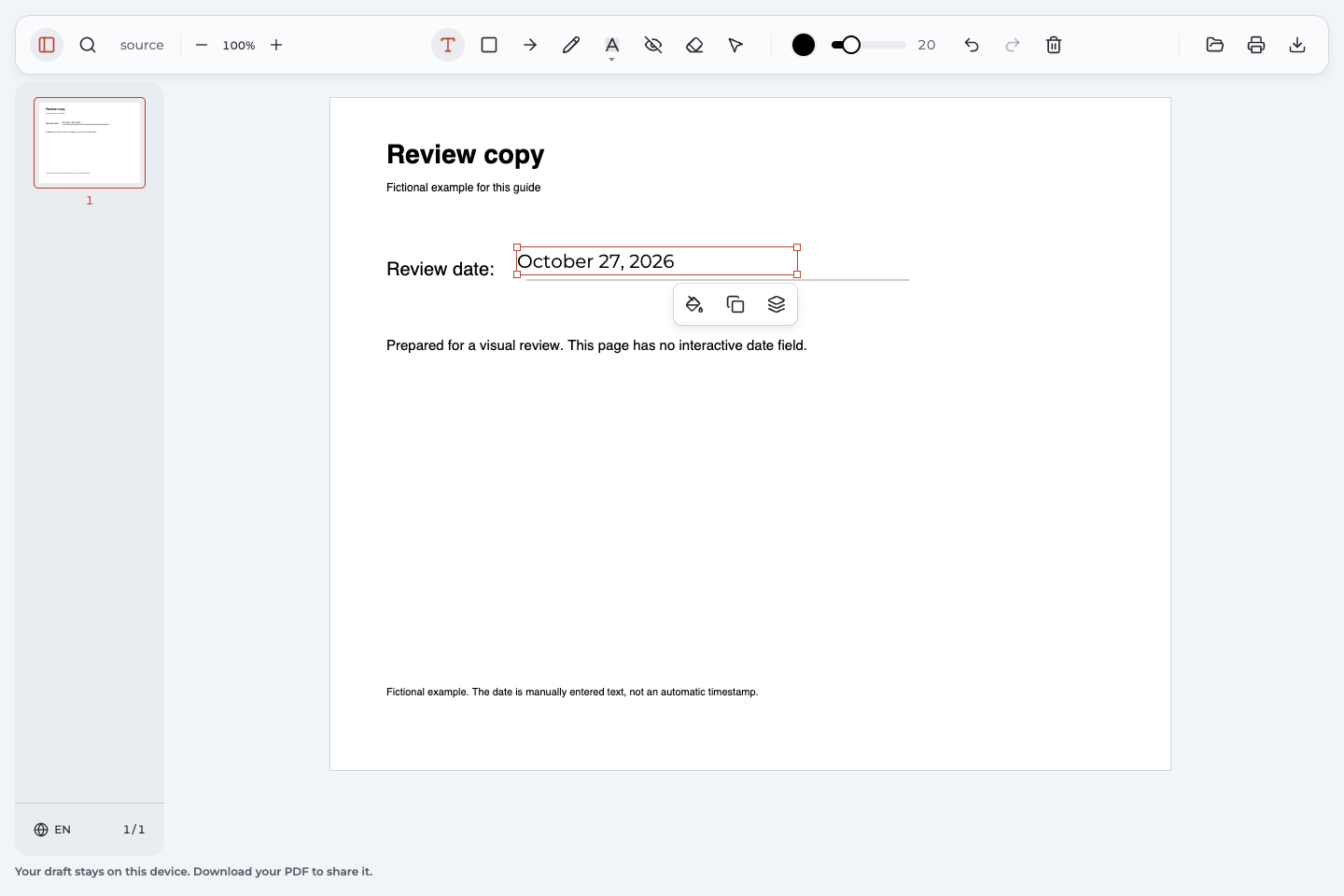
Choose the Text tool, click in the intended area, and type your date. This example uses October 27, 2026. Click away from the text to finish the entry, then check that it appears on the page.
Spelling out the month provides a clear date format for a document that may be read by people using different numeric conventions. Include the year when it matters to the record, and verify all three parts before continuing.
Make the purpose of the date clear
A date without context can leave the recipient wondering what happened on that day. Use the printed label when it accurately describes your addition. If you need to add text for context, a short label such as “Reviewed on:” can explain the meaning. Do not label an unfinished review as complete merely because a date has been entered.
3. Check appearance and placement
Adjust the font size and color so the date is easy to read against the page. The demonstration uses size 20; your document may need a different size to fit its available space. Inspect the result at a normal reading scale, not only while zoomed in.
| What to adjust | What to look for | Expected result |
|---|---|---|
| Font size | The complete date fits in the intended area. | No digits or letters overlap nearby content. |
| Color | The date contrasts with its background. | The added information is readable. |
| Position | The text sits beside its label and above any printed line. | The reader can connect the date to the right item. |
The text still looks crowded
Finish editing so you can see the entry without the active text cursor. Compare it with its label and any neighboring lines. Reduce the size or move your annotation into the available space, then inspect the full page again. Keep the printed content visible rather than using your date to cover it.
4. Correct or move your own date
To fix a typo, double-click the text you added and edit it. Finish by clicking away. For example, changing October 26 to October 27 is a manual entry correction; it does not change any other text on the page.
To reposition the date, select your text annotation and drag its border to the intended location. Moving the selected border adjusts placement while keeping the wording. Recheck the gap between the text and the printed date line after releasing it.
I need to start the date again
Choose Select, select your added date, and use Delete selected annotation. Add a new entry in the correct place. For a recent mistake in the current session, Undo can restore the previous state. Check the page after undoing before making another change.
Export and reopen the dated copy
Choose Export document to save your changes in a downloaded copy. Open that download and inspect the actual PDF document you intend to send.
- Read the month, day, and year against the date you intended to enter.
- Confirm that the date sits beside the correct label.
- Check that the letters and digits are clear of the printed line.
- Verify the filename so you do not send the source copy without the date.
Keep the downloaded version separately. A recoverable project helps while you are working, but it is not a substitute for retaining the finished file. If the recipient will print the document, check print preview and inspect the output for readable text.
Correct the exported copy before sending it
Reopen a supported Annotate PDF export with its annotation data intact. You can edit, move, or delete the text you added, then export another copy. The previous session's Undo history is not restored when you reopen the file. Check the new download after making the correction.
Inspect the fictional example
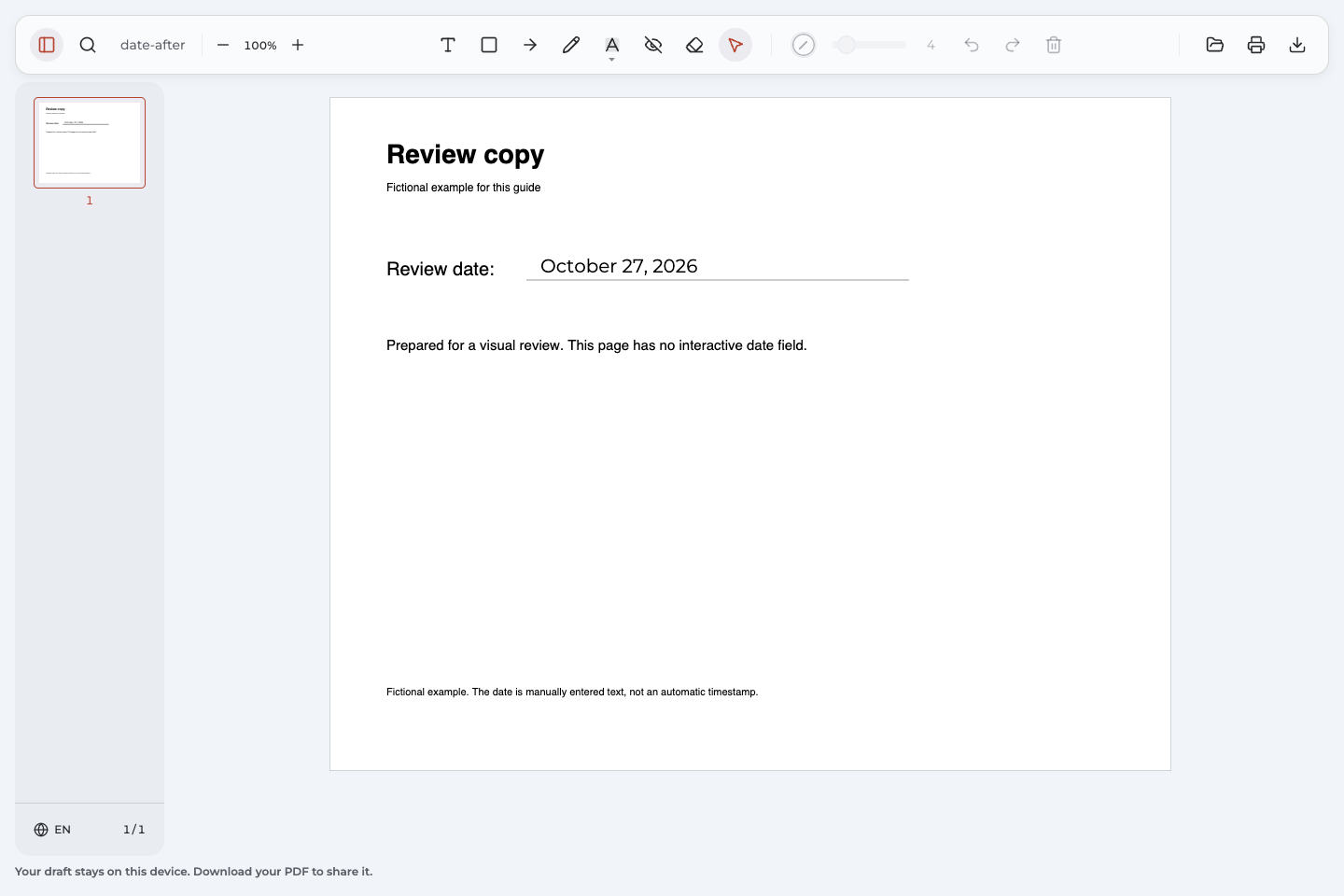
The source page has a “Review date:” label and an empty line. In the completed example, the date entry reads “October 27, 2026” above that line. The day was chosen manually for this demonstration; the document does not calculate or refresh it.
Open the source PDF without an added date and the exported copy with the date to compare them. The image below shows the exported copy reopened in Annotate PDF.
What happened between the two files?
The Text control added a separate annotation beside the existing label. The date was corrected, its position adjusted, and the document exported. Reopening confirmed the final wording, size, and placement. The sample contains no interactive form fields; the printed label and page content remain unchanged.
Common problems when adding a date
Use the symptom to choose the next step. An error in your own annotation usually needs a local correction rather than a new document.
The date is partly hidden by a line or another entry
Select your added text and move it by dragging the selected border. Keep it above the printed rule and clear of nearby wording. If the space is too narrow, reduce the font size. Export again once the full date is readable.
I changed a setting, but the date still needs editing
Double-click your annotation to return to text editing, then correct the wording. Click away to finish. Changing font size is separate from typing the date, so inspect both the content and appearance before exporting.
An existing date will not select
The date may be part of the original page rather than your editable annotation. Text added by another application may also behave differently. These instructions cover your own supported Anpdf additions; obtain an appropriate source or corrected copy when the existing wording cannot be changed here.
The document opens read-only
Read the status shown by the PDF editor. If the document requires an interactive date field, use a viewer that supports it. If an ordinary visual addition is sufficient, ask the sender for a permitted copy you can annotate. Do not bypass restrictions or force the document into a different format to gain access.
Questions about dates on PDFs
Will the typed date update automatically?
No. The text stays fixed until you edit it. If you want the current date on a later copy, check the intended day and change your annotation manually before exporting again.
Which method should I use for a visible review date?
Follow Add date to PDF with Text when a readable on-page addition is the required result. It lets you place and correct your own text, then check the downloaded copy. It does not enter a value into an interactive field.
Can I remove my date after saving?
Yes, for your own editable text in a supported Anpdf export with intact annotation data. Reopen it, choose Select, select the date, and delete the annotation. Export the result. A date baked into the page or created elsewhere may not be removable through this method.
Should I use numbers or spell out the month?
For a visible review note, spelling out the month makes the meaning explicit: October 27, 2026. If the sender specifies a required format, follow that instruction. Verify the intended date itself as well as how it is written.
Does adding a date change the original document text?
No. This method places a separate text annotation on the page. It leaves the original wording in place, so choose a clear location where the addition can be read without concealing other information.