
To add a checkmark to a PDF, open the PDF document in Annotate PDF, choose Pen, and draw a short downward stroke followed by a longer upward stroke without releasing the pointer. Export the annotated copy and reopen it to check the result. This adds a visible tick to the page, including beside an item on a static checklist.
A visual tick or a clickable checkbox?
A tick mark is a visible sign that identifies an item as checked or complete. Before adding one, decide whether someone needs to read the mark or a form needs to record a selected value.
| What the document needs | Appropriate action | Result |
|---|---|---|
| A visible check beside a checklist item | Draw a Pen mark on the page. | The saved copy shows the item you marked. |
| A selected checkbox in a fillable form | Use a viewer that supports the document's form fields. | The field records a selection through its own controls. |
The Pen method below is for visual check marks. It does not create a clickable checkbox or change a field's value. The sample used in this guide contains ordinary page boxes, not interactive controls.
Clicking a box does nothing—does that mean it is static?
Not necessarily. The viewer's mode, document restrictions, or support for that file can affect clicking. If the document is intended to collect field values, open it in a suitable form-aware viewer or ask the sender how to complete it. Drawing over the box is appropriate only when a visible mark is the result you need.
Add checkmark to PDF with Pen
These steps use the Annotate PDF extension in desktop Chrome. Install it before opening your document; work or school computers may limit extension installation. Anpdf processes the PDF locally on your computer and does not upload its document contents to a server.
1. Open your PDF and find the item
Choose Open PDF and select the PDF file you want to mark. Locate the correct row or item. If the checklist has several closely spaced boxes, zoom in until you can clearly distinguish the one you need.
Keep the adjacent label in view while drawing. The tick mark should make it obvious which item you checked, without covering the words that identify it.
2. Choose color and thickness
Select Pen, choose a visible color, and set Line width before drawing. A small box usually needs a modest stroke so the tick fits inside it and remains recognizable.
| Setting | What to check | Useful result |
|---|---|---|
| Color | The mark contrasts with the page. | The checked item is easy to locate. |
| Line width | The stroke does not fill the box or obscure its label. | The tick has a clear shape. |
| Zoom | You have room to control both parts of the stroke. | The mark stays beside the intended item. |
Should I use different colors for different checks?
Use a consistent style when the marks mean the same thing. If color carries a separate meaning, explain it in a note. A recipient should not have to guess whether blue means “reviewed” and green means “ready to send.”
3. Draw one continuous tick
To draw a checkmark, press near the left side of the box, move a short distance down and right, then move farther up and right. Keep the pointer pressed through both movements and release at the end. The two parts should form one continuous Pen stroke.
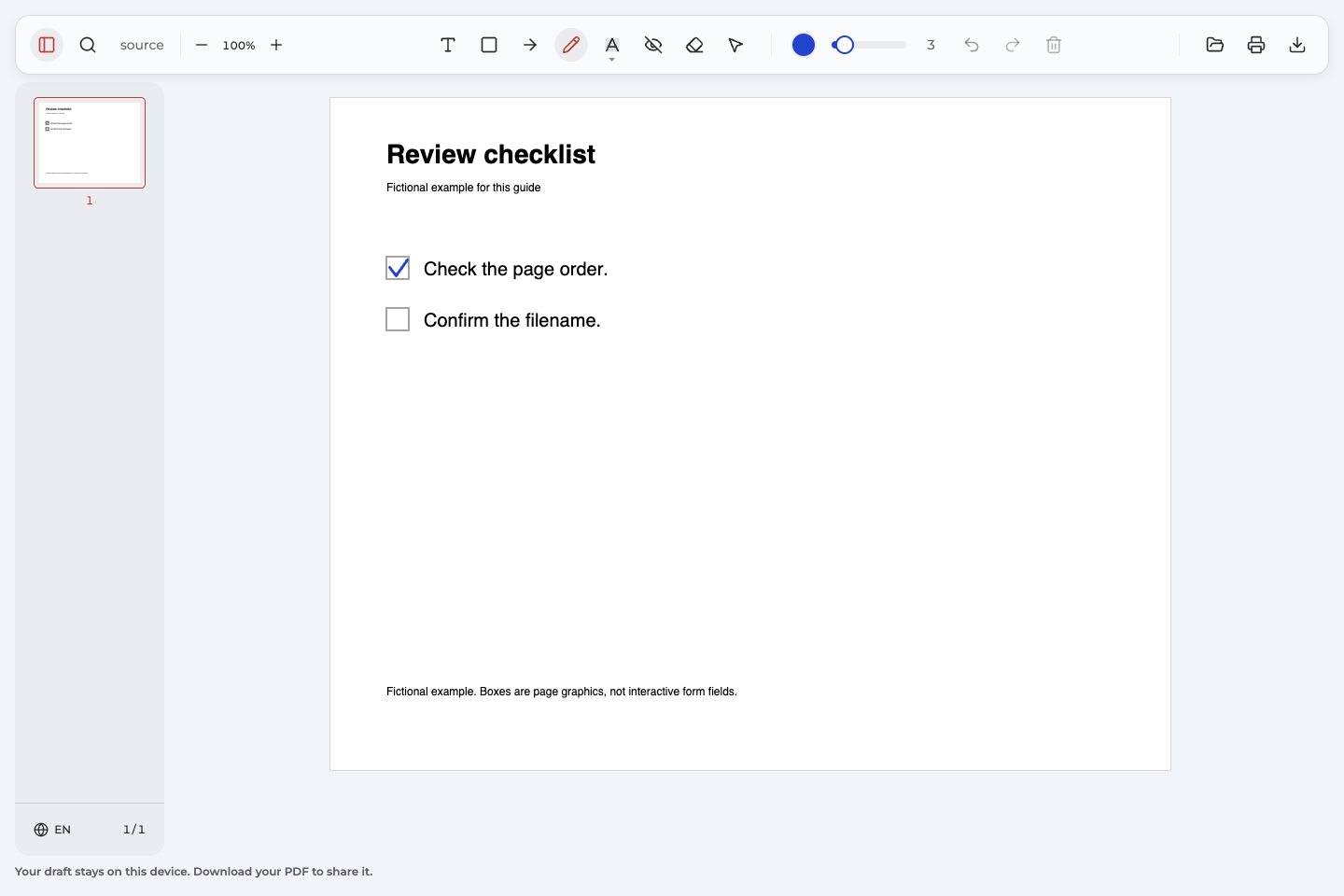
Inspect your first check marks before continuing. Draw checkmarks separately for additional completed items, keeping their size and position consistent. Leave unchecked items without check marks so the distinction remains clear.
Fix the stroke before moving on
If the tick lands outside the box or its shape is unclear, use Undo and draw it again. For a mark you added earlier, choose Select, select the tick, and use Delete selected annotation. Redraw it beside the correct item. Removing your stroke leaves the printed box and label in place.
4. Add a short note when the tick needs context
Choose Text, click in a clear area near the item, and enter a plain note in the text box. For example, “Page order checked.” explains what was verified. Keep the note separate from the checklist wording and make sure it does not cover the next row.
A note is optional when the checklist already explains what completion means. Add one when it helps the recipient understand the scope of your check.
Export and reopen the marked copy
Choose Export document to save the changes in a downloaded PDF document. Reopen that downloaded copy before sending it; checking only the editor does not confirm that you have selected the right file for handoff.
- Confirm the filename belongs to the annotated copy.
- Check that the tick is beside the intended item.
- Read any note at the size you expect the recipient to use.
- Look for marks that touch neighboring rows or make an unchecked item appear checked.
If the document will be printed, inspect print preview and the resulting page. Check marks should remain distinguishable even if color is lost. Keep your downloaded copy separately from the editor's recoverable project.
I need to correct something in the downloaded copy
Open the exported PDF document in Annotate PDF and select your own editable mark. Delete the misplaced tick, draw the correction, and export again. This depends on a supported Anpdf export retaining its annotation data. Reopening does not restore the previous session's Undo history.
See the completed checklist
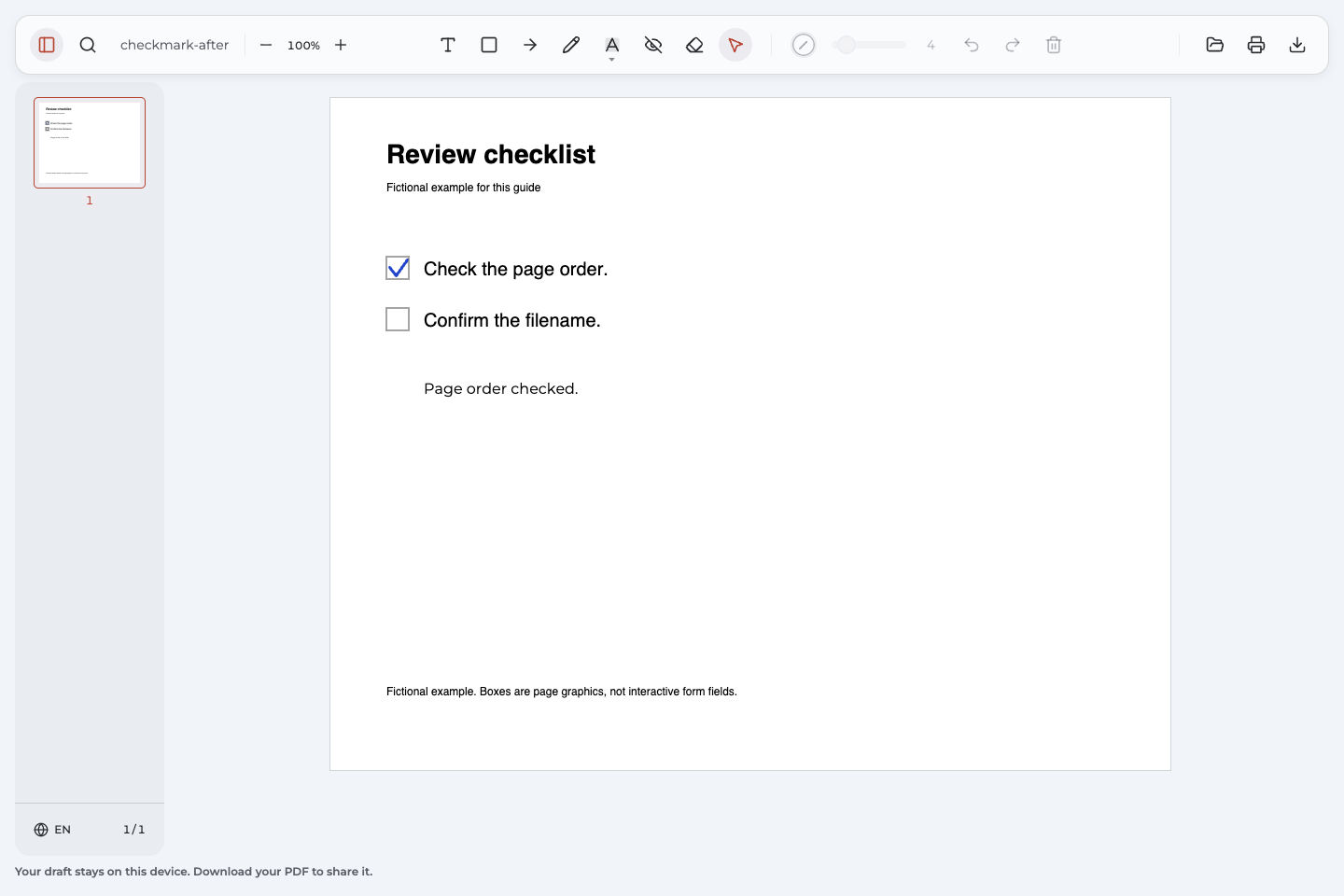
The fictional sample in this guide demonstrates a visual review: a blue tick appears in a static box, with the separate note “Page order checked.” The exported PDF was reopened to check that both annotations remained present.
Compare the unmarked checklist PDF and the exported checklist with its mark and note. These are actual before-and-after PDF documents from the demonstration, so you can inspect the finished result.
What does this example prove?
The demonstration adds one Pen stroke and one separate text note, exports the PDF, and reopens the output. Both marks survived that workflow. The boxes remain static: neither the source nor the output contains interactive form fields. The example illustrates a marked copy, not a submitted form response.
Common problems when adding a tick
Start with the visible symptom. You may need to redraw one stroke or use a different viewer for the document's intended task.
The tick is misplaced or touches two rows
Remove your stroke with Undo, or Select and Delete if it was added earlier. Zoom in, check the label of the intended row, and redraw inside its box. Zoom back out to confirm that the tick mark still identifies only one item.
The tick is too thick to recognize
Delete the unclear stroke, reduce Line width, and draw a new one. Leave enough space between the upper ends for the shape to read as a tick. Check the result at normal reading size before adding more tick marks.
Editing is unavailable or the file opens read-only
Read the status shown by the PDF editor. If the document requires supported interactive controls, return to a viewer that handles them. For a visual review, ask the sender for an ordinary copy you are permitted to annotate. Do not try to bypass restrictions or force a form into an editable page.
I cannot select a check that was already there
A check may be part of the page image or content rather than a separate editable annotation. A mark made by another application may also be unavailable for editing here. Use an unmarked source or ask the sender for a corrected copy when you cannot remove the existing mark safely.
Questions about PDF checkmarks
Can I paste a check symbol instead of drawing one?
Symbol support depends on the application and font, including how the symbol is exported. This guide verifies the Pen route, not pasted symbols. Follow Add checkmark to PDF with Pen for the demonstrated method, then inspect the downloaded copy.
Is there a keyboard shortcut for a checkmark?
There is no universal keyboard shortcut that works across PDF documents and applications. If your current PDF editor offers a symbol command, check its instructions and saved output. In Annotate PDF, use Pen for the visual method shown here.
Can I mark a scanned PDF?
Yes, when the page is available for annotation: Pen draws over the page image and does not require selectable words. Place the stroke next to the correct item and check its position after export. This adds a visual mark without recognizing or changing the scanned content.
Will drawing a tick complete a fillable form?
A drawn tick only changes what is visible on the page. It does not set a checkbox's interactive value. Use a form-aware viewer when the sender needs field values or an electronic form response.
Can I remove my tick after saving?
You can delete your own editable tick from a supported Anpdf export with intact annotation data, then export the corrected copy. A mark baked into the page or imported from another tool may not be removable. Keep the unmarked source if you expect to need a clean copy later.